Privacy settings

AI in Clamio

AI where it saves work.

People decide, Clamio suggests.

Clamio uses AI in a few, clearly named places.

  1. Clamio suggestsA suggestion, recognisable as a suggestion.
  2. You decideVerify or correct.
  3. Verified or correctedYour decision stays visible on the photo.

01Functions

Where Clamio uses AI

Photos stay in the EU

Damage photos

Detects damaged parts and suggests them for the file.

Clamio marks detected damage directly on the photo and lists the damaged parts with damage type. You verify or correct the suggestion.

  • Detects dents, scratches, cracks and broken glass as well as damage to lamps and tyres.
  • If a photo does not show a vehicle, Clamio rejects it. If the image quality is poor, you receive a notice.
  • Runs as a step in the workflow or at the push of a button for a single photo.
  • If a suggestion does not fit, you have the photo re-analysed.

Photos stay in the EUDamage photos and documents are stored in data centres in the EU, retrievable only via protected links that are valid for a short time. Detection runs in our own environment in the EU, without an external AI provider.

Illustration

Drawn damage photo of a van from the driver’s side. Two frames mark the detected damage: A on the sliding door, B on the driver’s door. A B

AI Analysis

Damage Detections

  • Dent
  • Scratch

Damaged Parts

  • Left sliding door
  • Driver’s door

Clamio suggests. You decide.
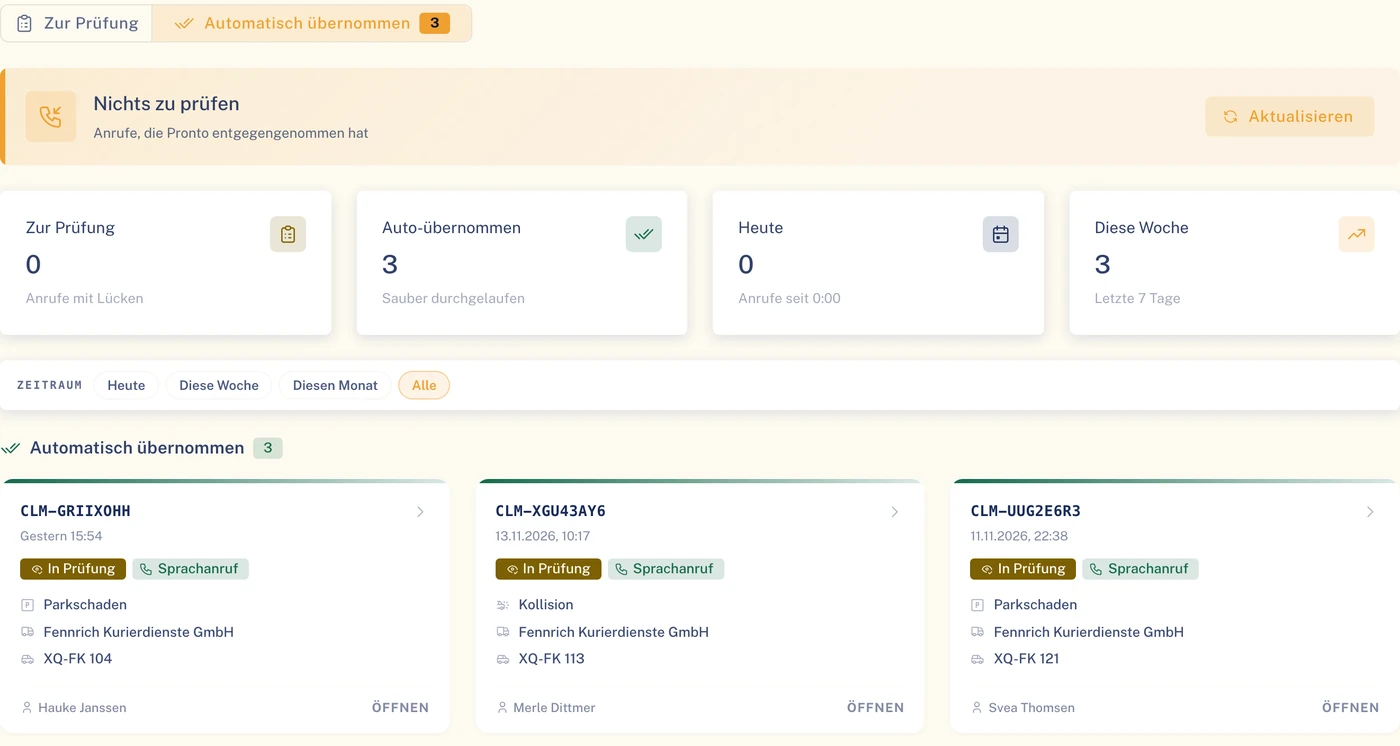
Illustration to try out: this is how a suggestion appears on the photo. Dashed means suggestion, solid means verified.

How it looks in the portal

Three damage photos from the Fleet portal, each in a different state. Demo data.

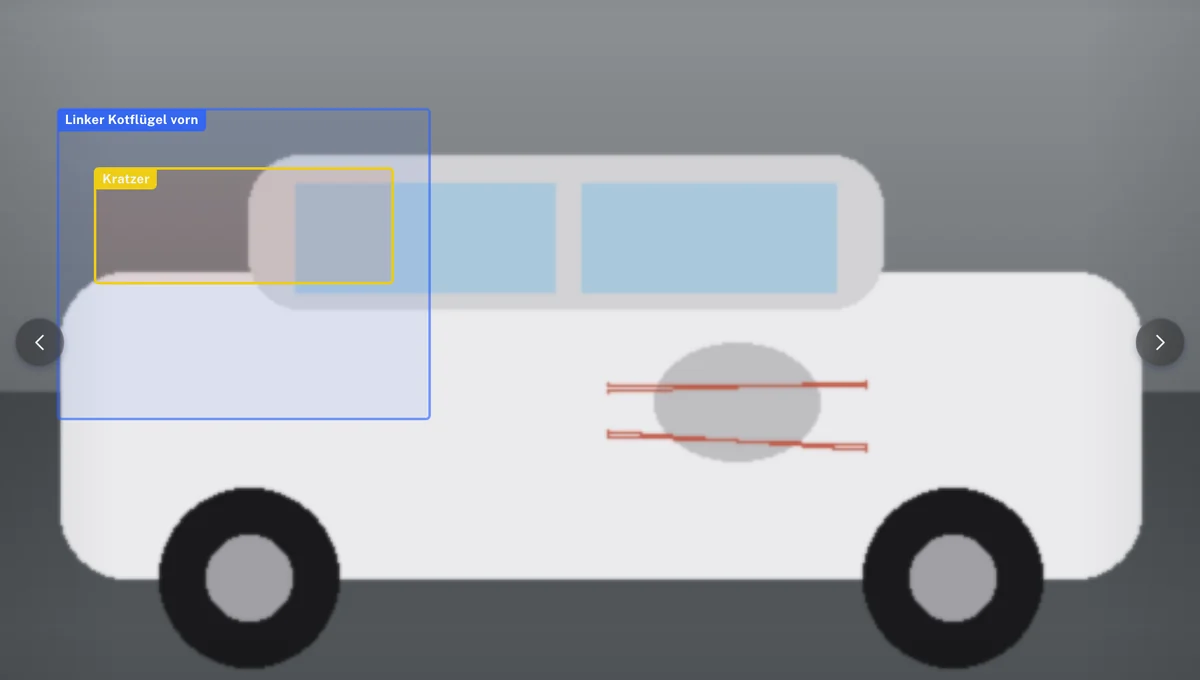
  1. 1Suggestion

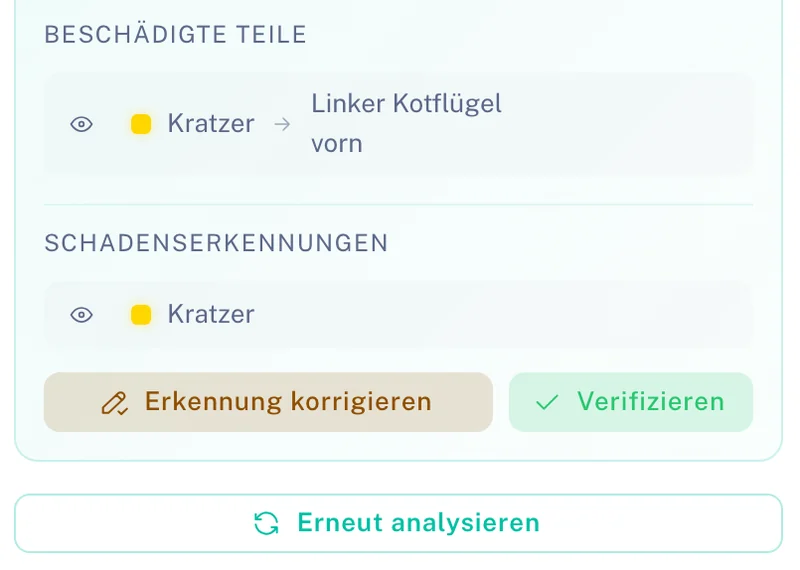
    Clamio frames the damaged spot and the affected part and lists both in the “AI Analysis” card.

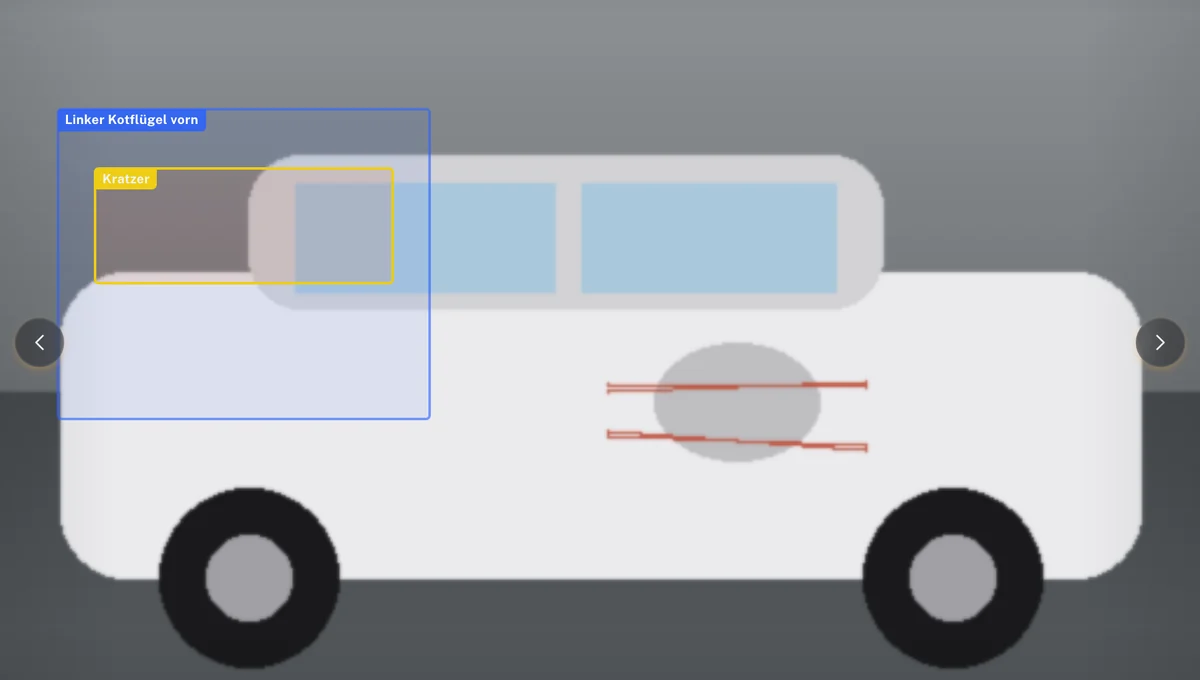
    Damage photo in the portal: one frame marks the left front wing, a second inside it a scratch.Damage photo in the portal: one frame marks the left front wing, a second inside it a scratch. Dark theme.
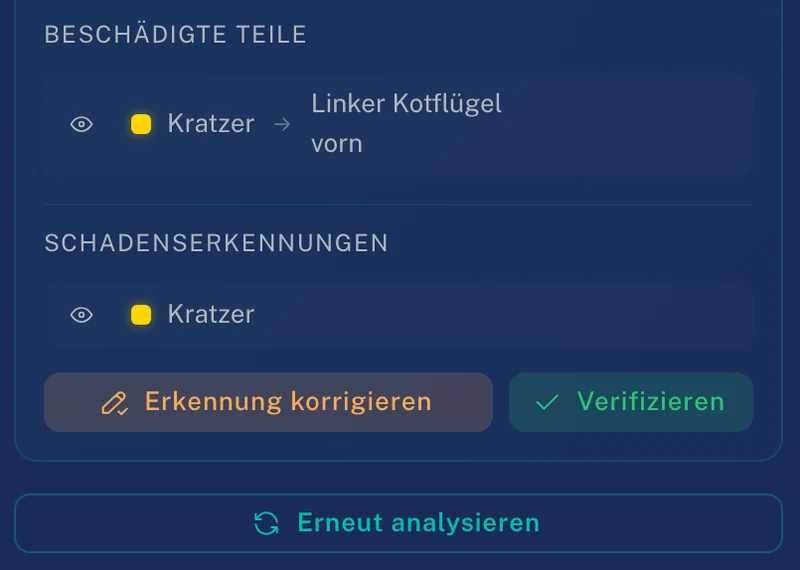
    AI Analysis card: Damaged Parts “scratch, left front wing”, Damage Detections “scratch”, buttons “Correct Prediction”, “Verify” and “Re-analyse”.AI Analysis card: Damaged Parts “scratch, left front wing”, Damage Detections “scratch”, buttons “Correct Prediction”, “Verify” and “Re-analyse”. Dark theme.
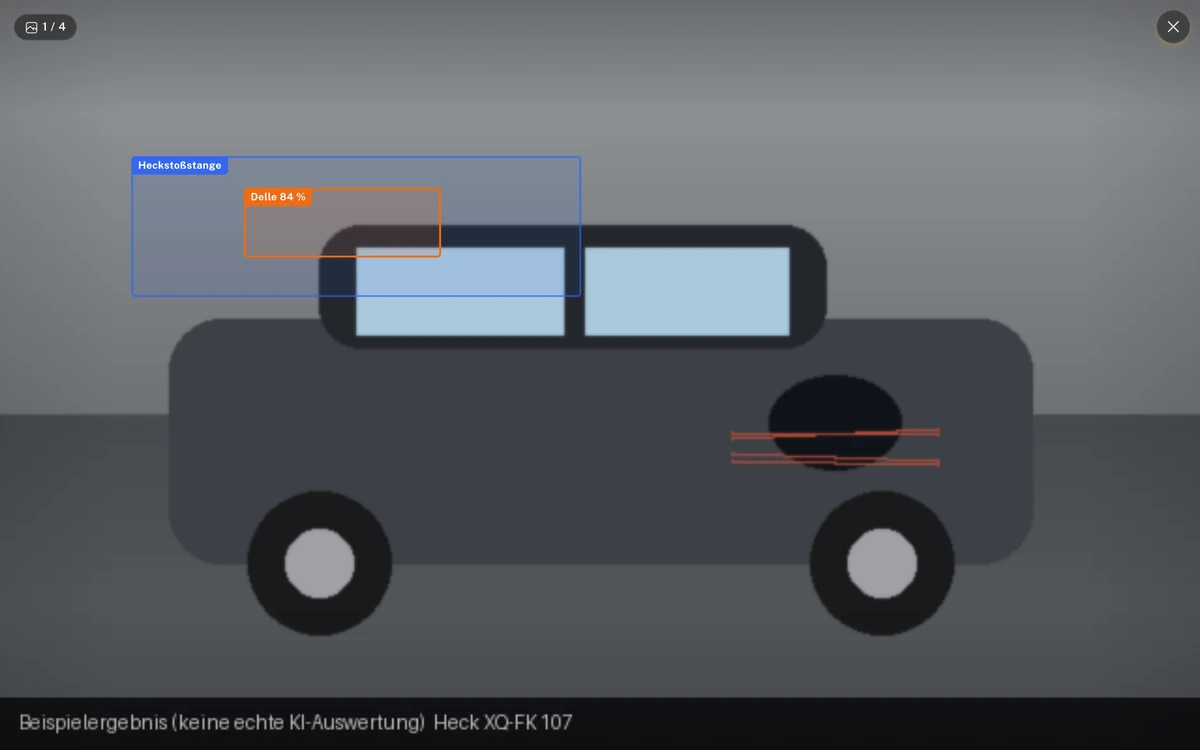
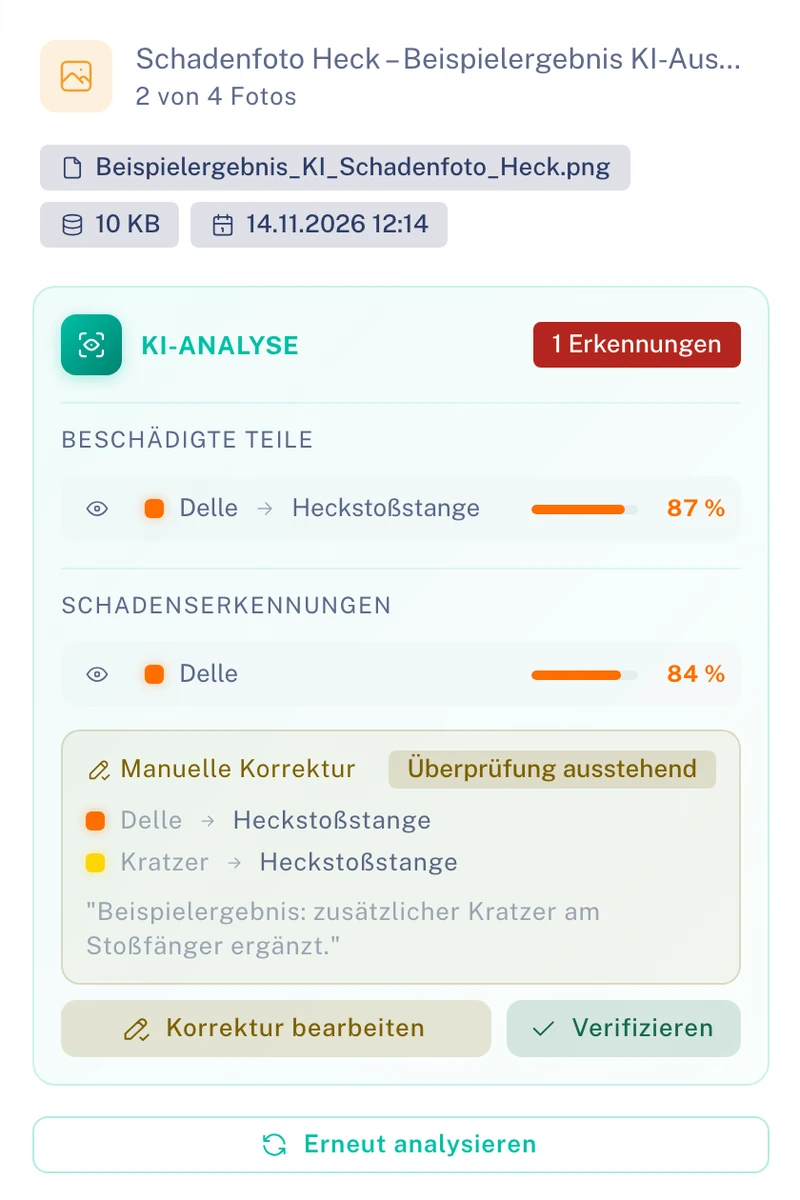
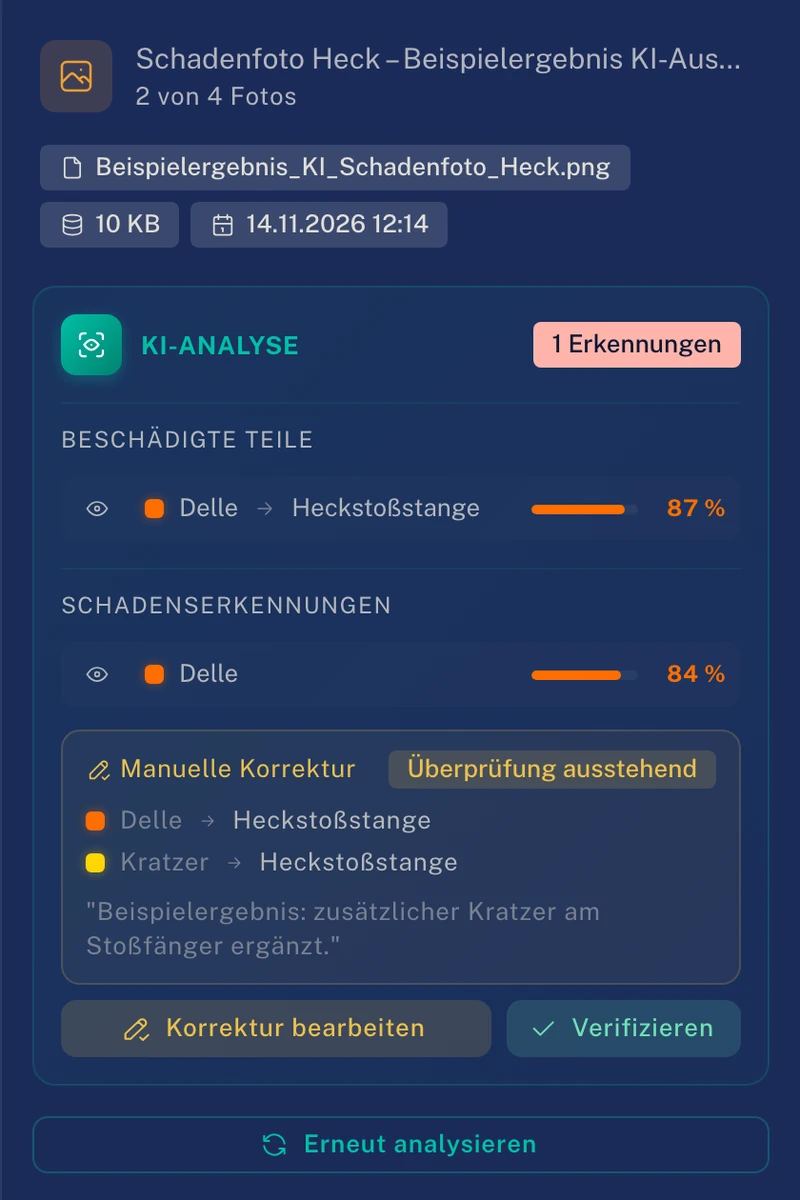
  2. 2Correction submitted

    A human correction supplements the suggestion. Until verification it shows “Pending review”.

    Damage photo in the portal with the note “Beispielergebnis (keine echte KI-Auswertung)” (sample result, not a real AI evaluation): one frame marks the rear bumper, a second inside it a dent.Damage photo in the portal with the note “Beispielergebnis (keine echte KI-Auswertung)” (sample result, not a real AI evaluation): one frame marks the rear bumper, a second inside it a dent. Dark theme.
    AI Analysis card for the damage photo: suggestion “dent, rear bumper”, with the “Human Correction” block below showing the status “Pending review” and an additional scratch on the rear bumper, buttons “Edit Correction”, “Verify” and “Re-analyse”.AI Analysis card for the damage photo: suggestion “dent, rear bumper”, with the “Human Correction” block below showing the status “Pending review” and an additional scratch on the rear bumper, buttons “Edit Correction”, “Verify” and “Re-analyse”. Dark theme.
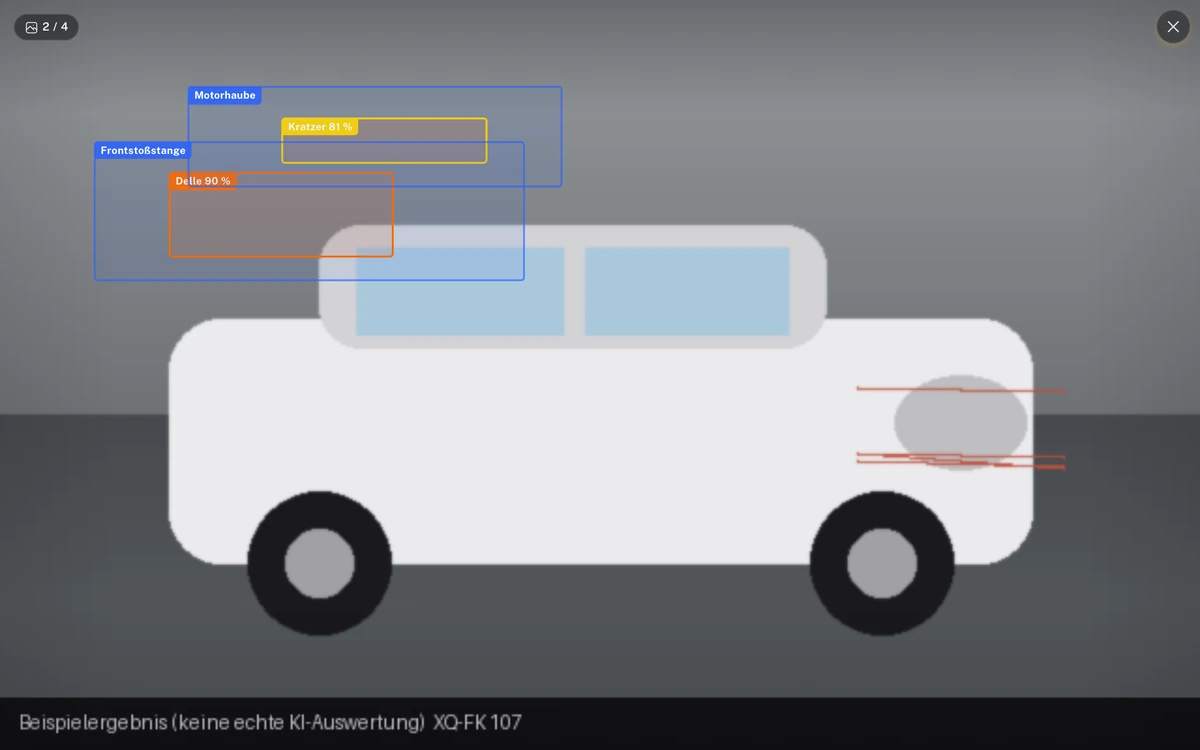
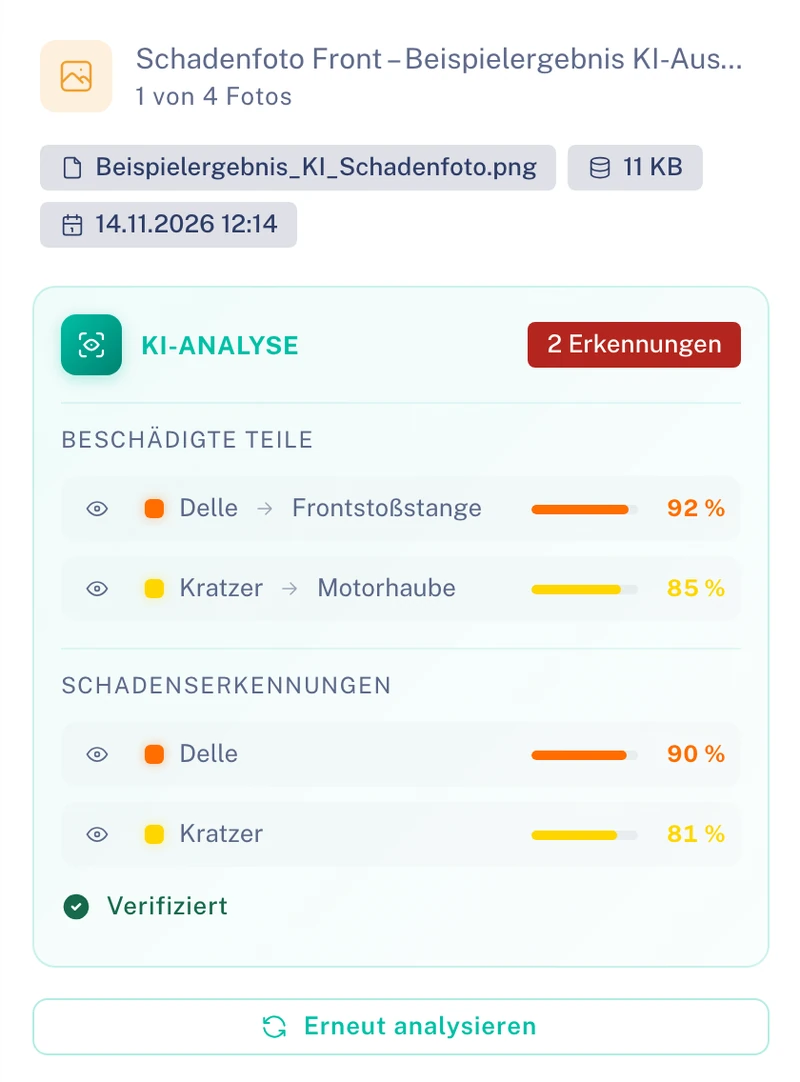
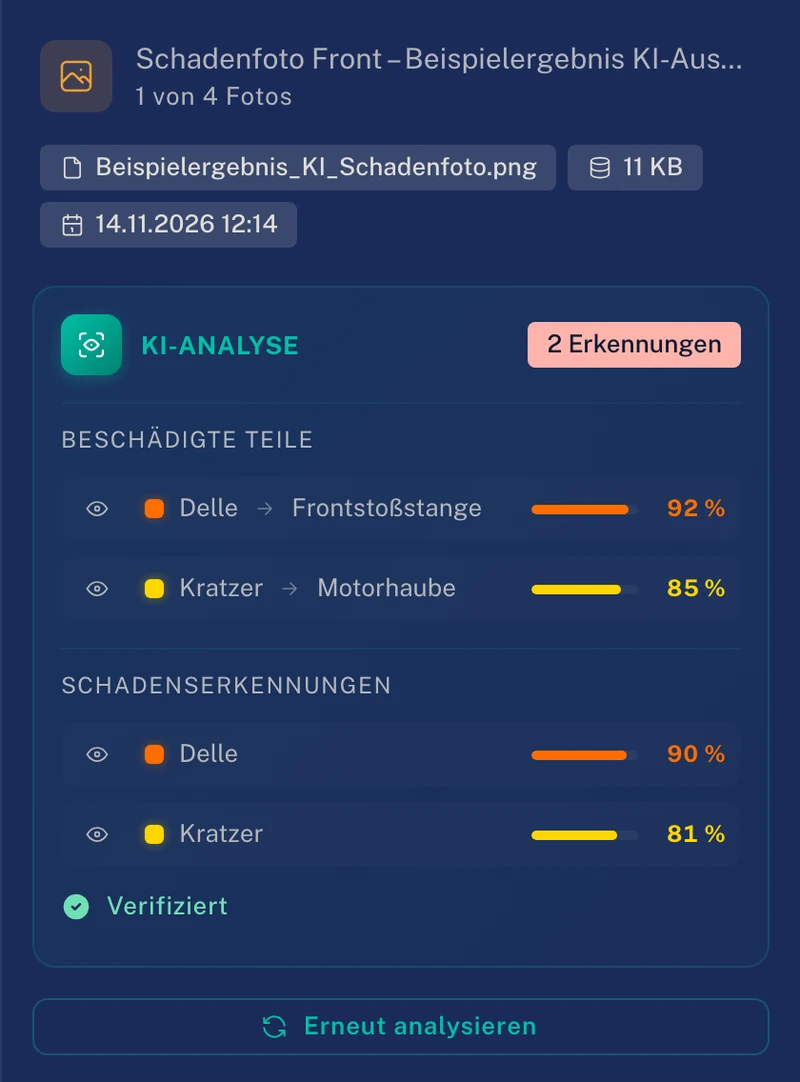
  3. 3Verified

    After verification the card shows the status “Verified”.

    Damage photo in the portal with the note “Beispielergebnis (keine echte KI-Auswertung)” (sample result, not a real AI evaluation): frames around the bonnet with “scratch” and around the front bumper with “dent”.Damage photo in the portal with the note “Beispielergebnis (keine echte KI-Auswertung)” (sample result, not a real AI evaluation): frames around the bonnet with “scratch” and around the front bumper with “dent”. Dark theme.
    AI Analysis card for the damage photo with 2 detections: “dent, front bumper” and “scratch, bonnet”, with the status “Verified” and the “Re-analyse” button below.AI Analysis card for the damage photo with 2 detections: “dent, front bumper” and “scratch, bonnet”, with the status “Verified” and the “Re-analyse” button below. Dark theme.

Further functions

Pronto, Clamio’s AI phone assistant

Takes reports by phone.

Documents and costs

Read documents, estimate costs, spot anomalies.

  • Read documents

    Reads details from documents and suggests them for the file.

  • Cost estimation

    Estimates the costs of a claim as a suggestion. The approval stays with people.

  • Spot anomalies

    Points out anomalies in a case. The review stays with you.

Pronto in the portal

From call to claim file in three views. Demo data.

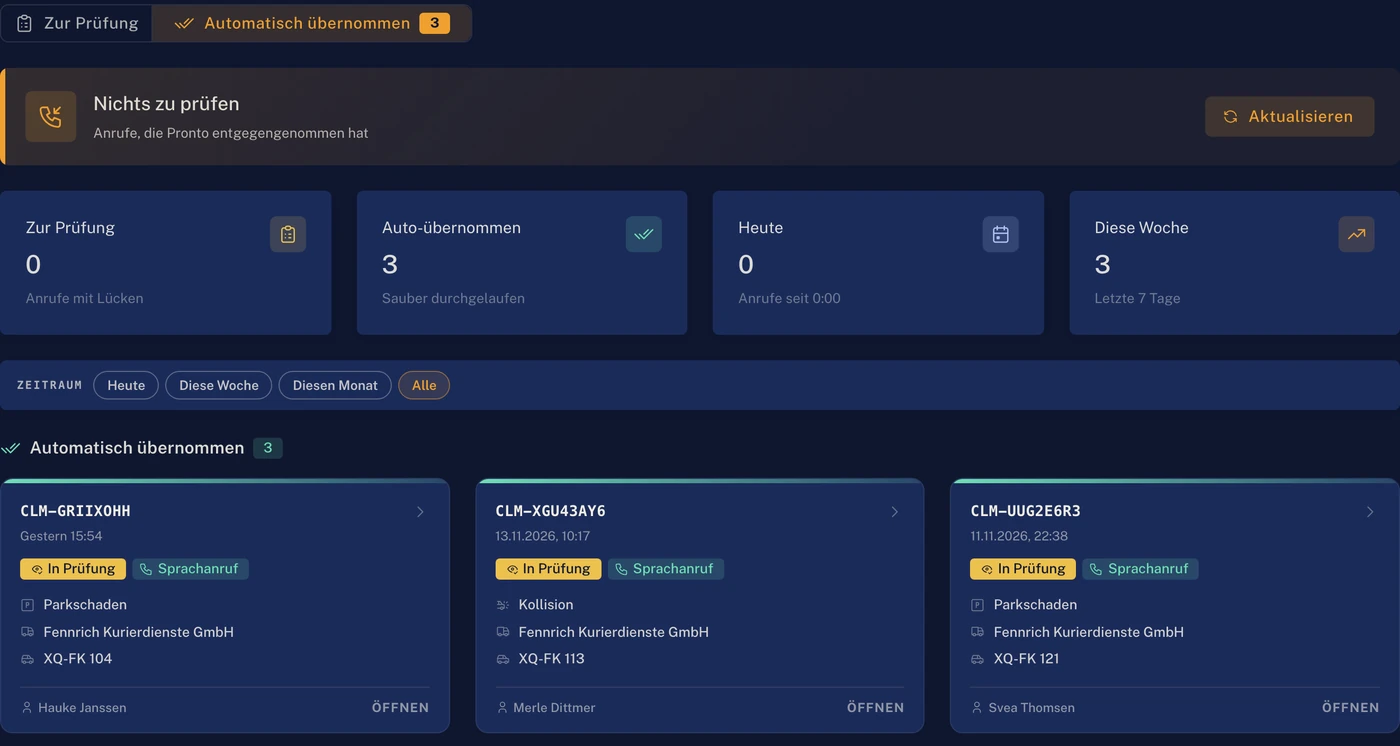
  1. 1Call list

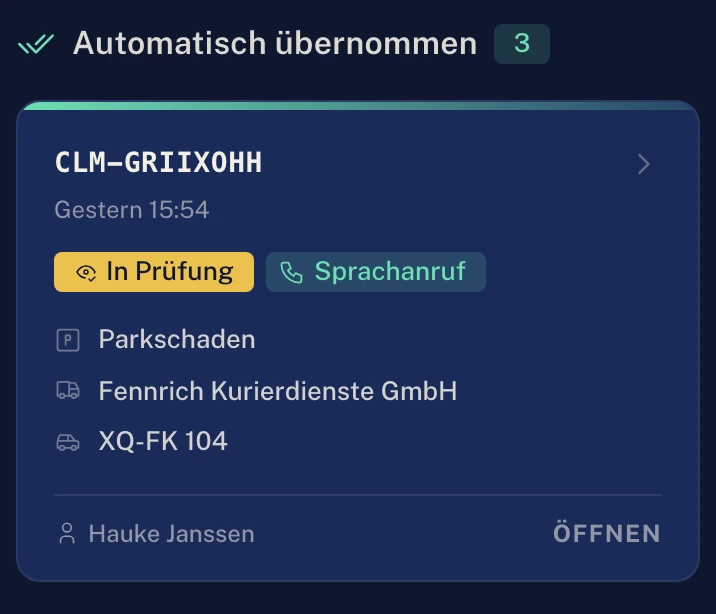
    The call list separates “Pending review” and “Imported automatically”. In the example, three calls have been imported.

    Call list in the portal: tabs “Pending review” and “Imported automatically”, key figures and three automatically imported calls, each with “In review” and “Voice call”.Call list in the portal: tabs “Pending review” and “Imported automatically”, key figures and three automatically imported calls, each with “In review” and “Voice call”. Dark theme.
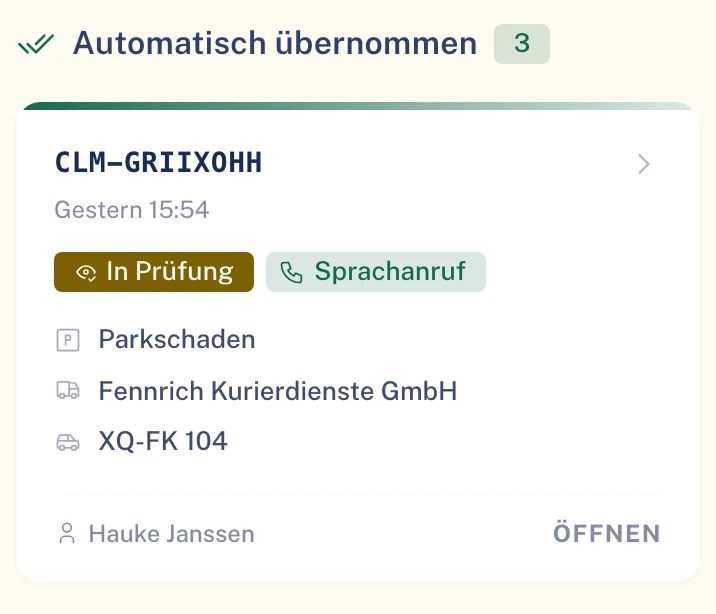
    Call list in the portal, section: “Imported automatically” section with one call, “In review” and “Voice call”, with damage type parking damage, fleet, number plate and the “Open” button below.Call list in the portal, section: “Imported automatically” section with one call, “In review” and “Voice call”, with damage type parking damage, fleet, number plate and the “Open” button below. Dark theme.
  2. 2Review draft

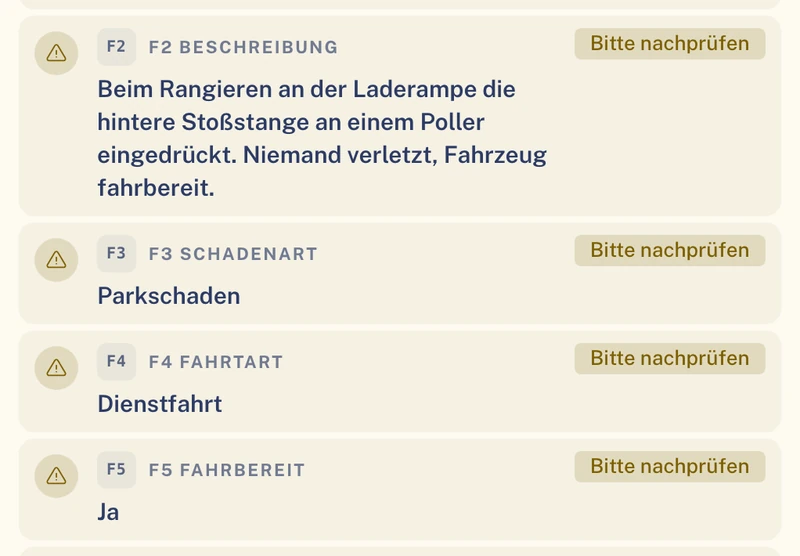
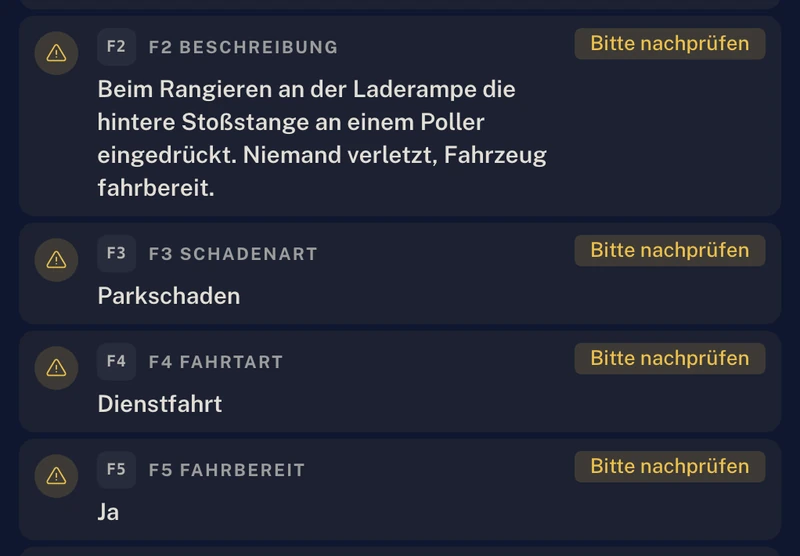
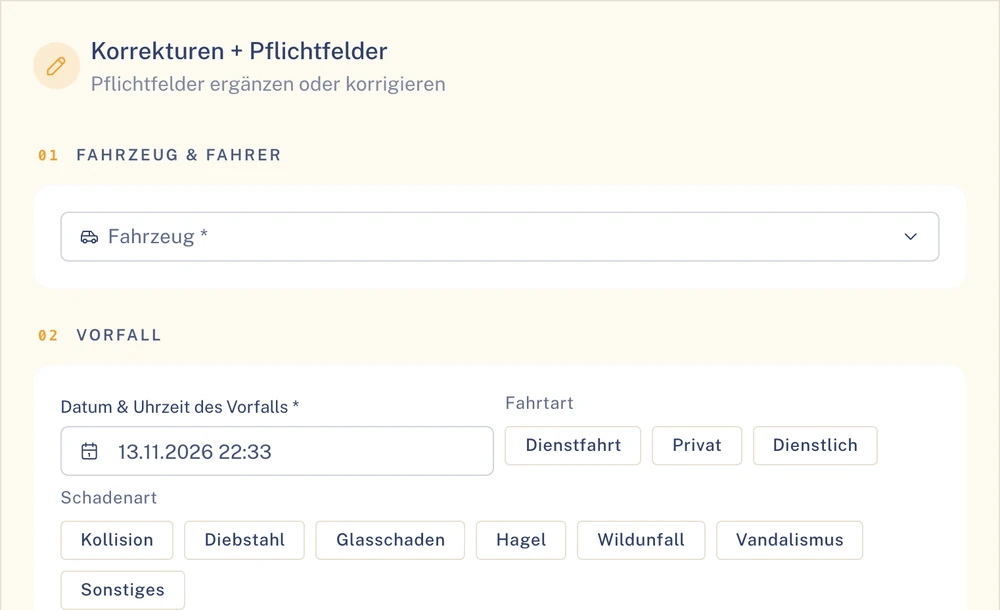
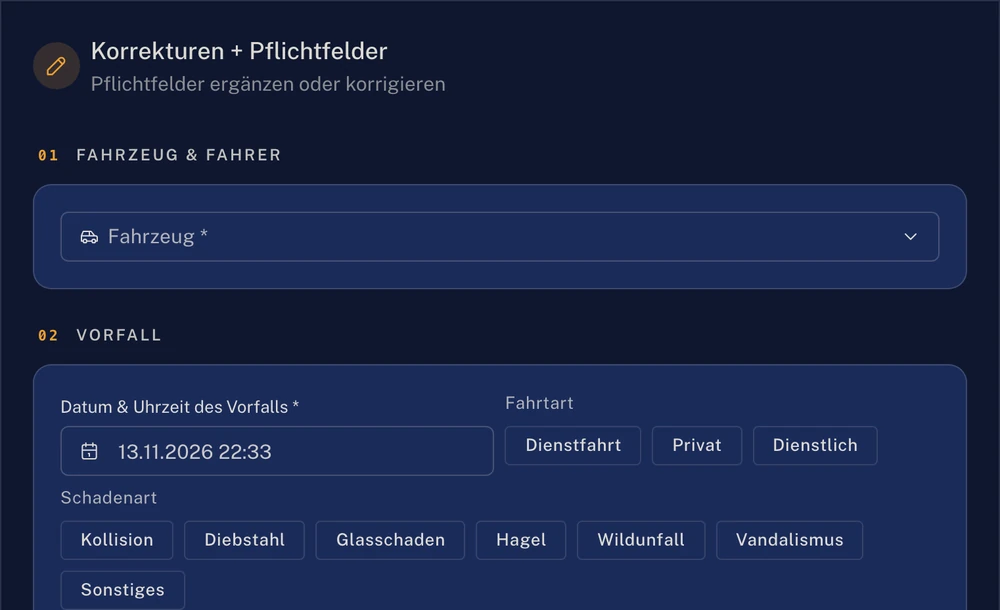
    You see the details recorded in the call, each marked “Bitte nachprüfen” (please check), and complete or correct the mandatory fields.

    Header of the “Review draft” view with the notices “Damage type not mapped”, “Consent missing” and “4 min call”.Header of the “Review draft” view with the notices “Damage type not mapped”, “Consent missing” and “4 min call”. Dark theme.
    Fields recorded in the call, each marked “Bitte nachprüfen” (please check): Q2 description in the caller’s words, Q3 damage type parking damage, Q4 trip type business trip, Q5 drivable yes.Fields recorded in the call, each marked “Bitte nachprüfen” (please check): Q2 description in the caller’s words, Q3 damage type parking damage, Q4 trip type business trip, Q5 drivable yes. Dark theme.
    “Corrections + mandatory fields” area: mandatory field vehicle, date and time of the incident, trip type and damage type to choose from.“Corrections + mandatory fields” area: mandatory field vehicle, date and time of the incident, trip type and damage type to choose from. Dark theme.
  3. 3In the file

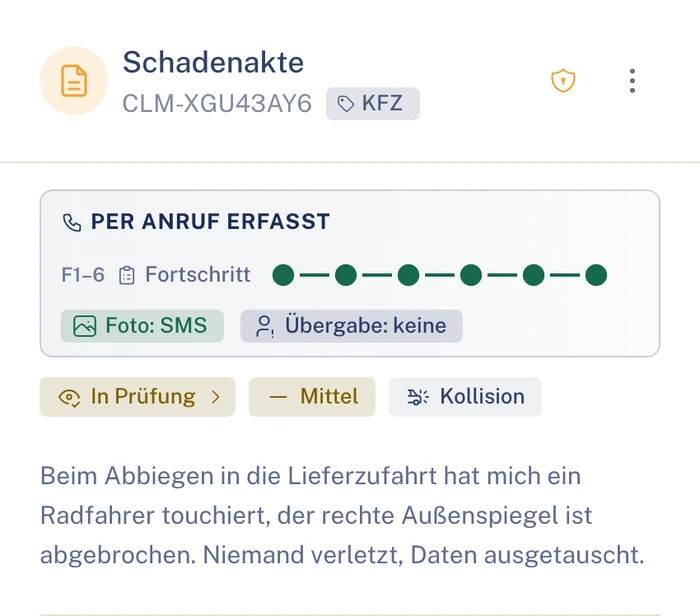
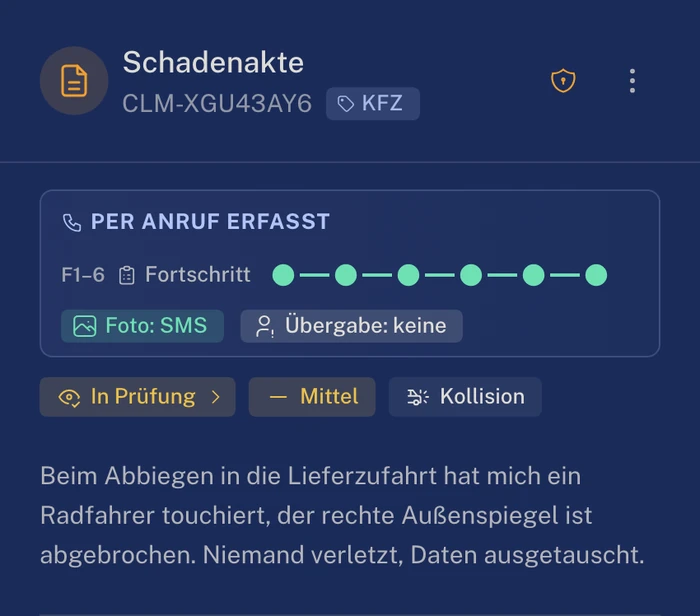
    The claim file shows “Voice intake” with the progress of the questions.

    Claim file: “Voice intake” box with progress Q1 to 6, “Photo: SMS” and “Handover: none”, with the chips “In review”, “Medium” and “Collision” and the caller’s account below.Claim file: “Voice intake” box with progress Q1 to 6, “Photo: SMS” and “Handover: none”, with the chips “In review”, “Medium” and “Collision” and the caller’s account below. Dark theme.

02Principles

What we adhere to

Suggestion, not automation. Your decision stays visible on the photo.

  • Suggestion, not automation

    In Clamio, AI suggests. You verify or correct. Approvals and decisions stay with people.

  • Visible on the photo

    Whether you verify or correct stays visible on the photo. Verification and correction are stored with person and time.

  • Data processing in the EU

    Damage photos and documents are stored in data centres in the EU, retrievable only via protected links that are valid for a short time. Detection runs in our own environment in the EU, without an external AI provider.

  • Recognisable as AI

    You always see which suggestion comes from the AI. The card is called “AI Analysis”.

03AI in the workflow

Suggestions when reporting and reviewing. Approvals with people.

The workflow takes every case from report to closure. Along the way the AI supplies suggestions. It approves nothing.

  • AI suggestion
  • Process in the workflow
  • Approval by a person
    • Damage photos
    • Pronto
    • Read documents
    • Cost estimation
    • Spot anomalies
  1. Partner selection
  2. No AI suggestion

  3. Settlement
  4. Closure

When reporting

Clamio suggests

The photos arrive with the report. Clamio marks detected damage directly on the photo and lists the damaged parts with damage type.

Pronto takes reports by phone.

You decide

The suggestion changes nothing in the case. It waits on the photo until you review it.

When reviewing

Clamio suggests

The file shows the suggestion on the photo. If something does not fit, you have the photo re-analysed.

Read documents, cost estimation, spot anomalies.

You decide

You verify or correct the suggestion.

At approval

Clamio suggests

Nothing. No AI works at this station.

You decide

The AI approves nothing.

See the workflow

04Frequently asked questions

Quick questions

Does the AI decide on a case?

No. Clamio suggests; you verify or correct. Approvals stay with people.

Which AI functions are there in Clamio?

Damage photos: Clamio detects damaged parts and suggests them for the file. In addition Pronto, reading documents, cost estimation and spotting anomalies.

Where are damage photos analysed?

Damage photos and documents are stored in data centres in the EU, retrievable only via protected links that are valid for a short time. Detection runs in our own environment in the EU, without an external AI provider.

What if a suggestion is wrong?

You correct it or have the photo re-analysed. The file adopts nothing automatically. Detected parts are a suggestion on the photo; verification is done by you.

Clamio suggests, you decide.

In a demo we show you how a suggestion appears on the damage photo and how you verify it.

Prefer to see the process first? See the workflow