Platform · Finance
Every amount belongs to a case.
Invoices, reserve and receivables sit where they arise: on the file.
The payer reviews invoices, the reserve ledger records every change, open items have a debtor and a status. You export lists as CSV; large exports run in the background.
What moves money
- Invoices
- Reserve
- Receivables
- Payments
On the file · Stations on this page
01The path of an invoice
Submitted, reviewed, approved, paid.
Play an invoice through: the partner submits it, the payer reviews and decides. Every step appears in the history.
Illustration to try out · not a product image
The example
Statuses of the invoice
- Draftcurrent
- Submittedopen
- In reviewopen
- Approvedopen
- Paidopen
Now
Four eyes, if switched on
Draft. The partner has created the invoice for their order.
History
No entry yet.
The illustration shows the statuses of an invoice. It does not show amounts or names.
02Invoices
Whoever pays, reviews.
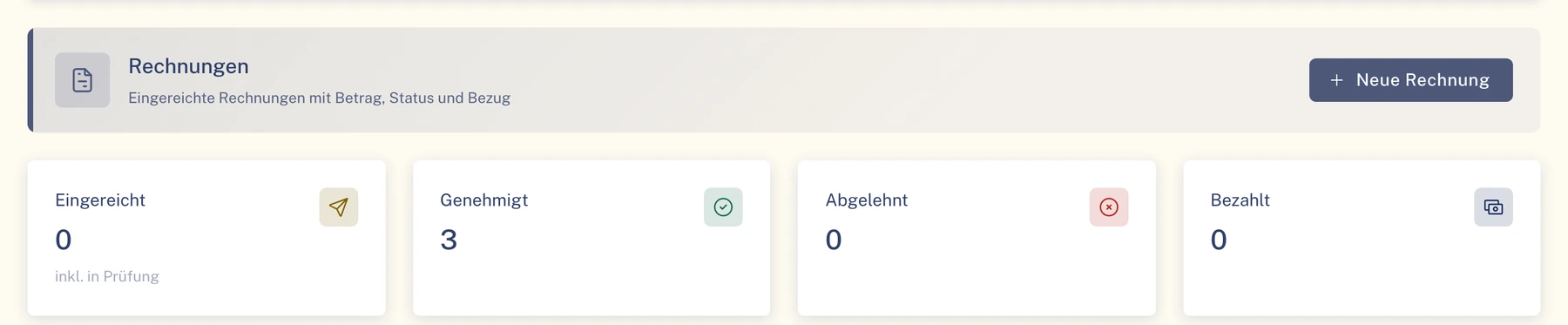
The payer reviews and approves invoices or rejects them with a reason. They then record the payment.
- Service providers submit their invoice for the order, in their own portal.
- The review takes place where payment is made: at the fleet or at the insurer.
- You record invoices from your own service providers without a portal yourself.
- Clamio does not silently infer who bears the costs. A person confirms it, individually or in bulk.
Four-eyes principle, if you switch it on
Optionally the four-eyes principle for cost estimates and invoices from an amount you set. Whoever requested the decision does not make it themselves.
From the partner portal
Demo data
03Reserve ledger
The reserve has a memory.
The reserve ledger records every change to the reserve, with person and time.
- The reserve belongs to the claim and is in its file.
- Clamio does not estimate or increase reserves itself. Changes come from the user, from your interface or from a workflow step configured by you.
- Next to the reserve is the documented settlement decision.
Illustration · Entries in the reserve ledger
- Reserve setWith person and time.
- Reserve changedThe earlier status remains readable in the history.
- Second approval In preparationReserve with four-eyes principle.
- Closing entry In preparation“Reserve released” on closure.
04Receivables
Open items with debtor, amount and status.
What is owed to the fleet is recorded as a receivable on the case, from recourse to excess.
- Types: recourse, recharge to driver, excess, settlement, reimbursement and other.
- Debtor: driver, organisation, third party or external partner.
- You record incoming payments on the item, including part payments.
- Items are recorded, not calculated.
- Reminders exist for violations. For other receivables there is no dunning and no debt collection.
Recharge to the driverThe fleet decides whether to recharge the driver. Clamio recharges nothing by itself.
From the interface
Demo data

05Export
What the list shows is also in the export.
You export lists such as claims or invoices as CSV.
- The export contains exactly what the list shows you, with the same permissions.
- Large exports run in the background. You find them under “My exports” and are notified.
- Amounts stay empty if you lack the “Read costs” permission.
- Exporting is a permission of its own. The files are available for a limited time.
Lists, e.g. claims
- ExportThe list as a CSV file, with the active filters.
- My exportsLarge exports run in the background. You find the result here.
Invoices
- Download CSV (current filter)The invoices as a CSV file, just as you have filtered them.
- Background exportsLarge exports run in the background.
- Booking exportAs a CSV file or as a DATEV booking batch in EXTF format. This requires your account to have the permission for costs and accounting.
- Accounting profileChart of accounts, adviser and client number and accounts per cost type.
06In preparation
Not yet available, and therefore marked separately.
These functions are not part of the scope today. We name them separately so that it stays clear what you can use now.
Cost ledger In preparation
Cost items and cost types on the claim.
Reserve with four-eyes principle In preparation
A second approval for the reserve above a threshold.
Closing entry In preparation
“Reserve released” when the claim is closed.
Invoicing deadlines In preparation
Monitoring of settlement and invoicing deadlines.
07Frequently asked questions
Quick questions
In preparation: cost ledger and finance overview.The four-eyes principle only applies if you switch it on.
Does Clamio transfer the invoice amounts?
No. Payments are recorded. Payment is made outside Clamio.
Is there a DATEV export?
Yes. The booking export is available as a CSV file or as a DATEV booking batch. This requires your account to have the permission for costs and accounting. You export lists as CSV.
Who sees amounts?
At the fleet, amounts are seen by those with the “Read costs” permission. A partner sees the amounts of their own orders and invoices.
Can the MGA manage our receivables?
Yes, with a write authority that includes the “Costs & invoices” area.
Keeps it rolling.
In a demo we follow an invoice from submission to the payment record.
Where do approvals arise in the process? See approvals