
Driver app · For iOS, Android and iPad
The direct line to the driver
With the Driver app your drivers report claims, breakdowns and defects with photos, complete tasks and submit evidence. Costs and insurance decisions stay hidden.
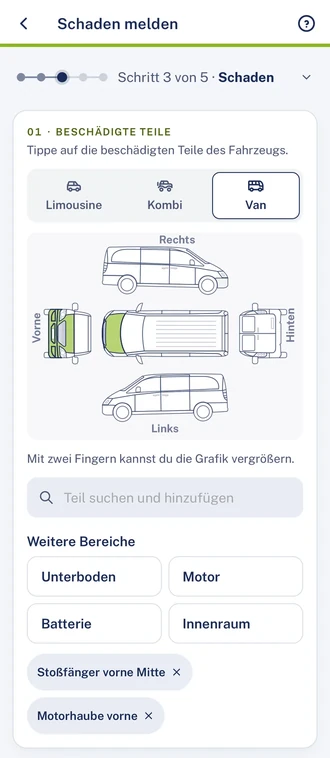
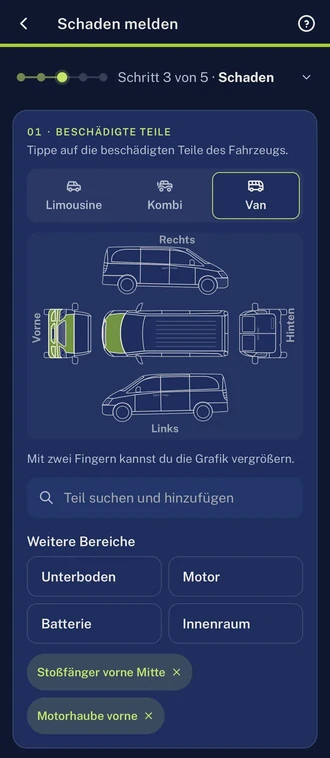
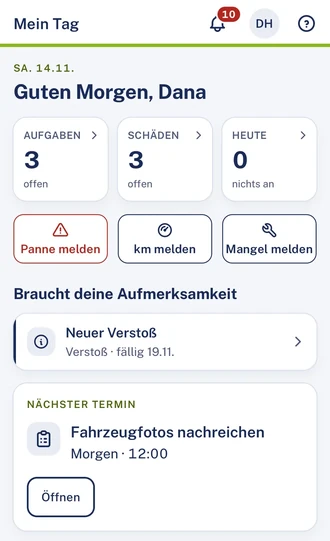
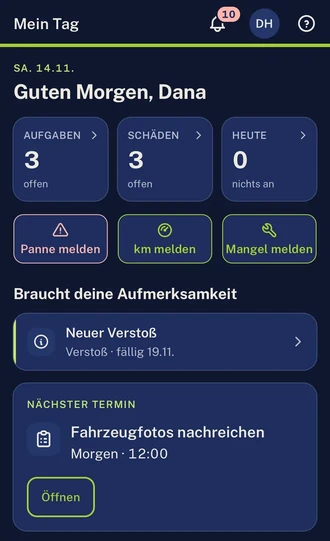
Screenshots from the Driver app, with invented demo data.
- Report claim, breakdown and defect with guidance, with photos and, if desired, as a draft first
- Drivers see the status and documents of their own reports
- Reports land in the file in structured form
Starting point
What slows down reporting today
Three places where things get stuck today, and what Clamio does there.
-
Report by phone call
Drivers call or send photos by their own routes. Details are missing and have to be asked for.
With ClamioThe app guides the driver through the report in steps. Vehicle, mileage and location are prefilled.
-
When will help arrive?
After a breakdown the driver waits and asks the fleet.
With ClamioThe driver sees the arrival time in the app, even if it changes.
-
Unclear who sees what
What drivers learn and what they do not is not governed consistently.
With ClamioDrivers see the status and documents of their own reports. Costs, liability and insurance decisions are hidden.
01Report
Reported in a few steps
Report claim, breakdown and defect with guidance – with photos and, if desired, as a draft first.
- Claimwith photos and a sketch of the vehicle
- Breakdown (add-on module)Stranded vehicle with location
- Defect (add-on module)reported with guidance, with photos
Guided
The app guides the driver through the report in steps. The driver taps the damaged parts on the sketch of the vehicle.
Prefilled
Vehicle, mileage and location are prefilled.
As a draft
If desired, the driver first creates the report as a draft.
Into the file
Photos, location and course of events go into the claim file in structured form.
One file, everyone sees their own section.
02Workflow
The driver reports, the workflow takes over
The report lands in the file in structured form. From there the workflow steers partner selection and approvals. The driver only sees what concerns them.
-
01Report
The driver reportsclaim, breakdown or defect, with photos.
-
02Review
You handle the report; the driver sees the status.
-
03Partner selection
The driver seesin a breakdown, the status of the help, the arrival time and the breakdown service’s case no.
-
04Approval
The driver sees the statusCosts, liability and insurance decisions are hidden from drivers.
-
05Settlement
The driver sees the statusCosts, liability and insurance decisions are hidden from drivers.
-
06Closure
The driver sees the status.


Report
The driver reports
Guided, with photos, if desired as a draft first. Vehicle, mileage and location are prefilled.
File
The report becomes the file
Photos, location and course of events go into the claim file in structured form.
Workflow
The workflow takes over
One process for claim, breakdown, defect and violation. As soon as a report comes in, the process starts.
Driver
The driver sees their part
Drivers see the status and documents of their own reports. Costs, liability and insurance decisions are hidden.

Messages to partners and drivers contain no claim amounts.
Who organises the help
If a driver reports a stranded vehicle, the fleet commissions the towing service (breakdown assistance) via Clamio.
Tasks from the workflow
Example “Upload documents”: the driver receives a link and submits the documents for their claim.
What the driver learns
The driver sees the status of the help and the arrival time in the app, plus the breakdown service’s case no.
What stays hidden
Costs, liability and insurance decisions are hidden from drivers.
03My day
“My day” shows what is due
The daily overview shows appointments, deadlines and notices such as “Vehicle locked”.
- 1Tasks, open claims and today’s appointments
- 2Needs your attention: a new violation with a deadline
Tasks
Work on tasks, hand them back or complete them – with checklists, photos and comments.
Vehicle
Report mileage and HU, AU and UVV evidence directly in the app. The app also shows the vehicle’s cover.
Driving licence
Under “My driving licence” the driver sees classes, validity and status and receives a notice when it is about to expire.
Violations
Drivers see their own violations, without amounts, and can upload documents.
Reminders
The driver is reminded before deadlines and appointments expire.
Deadlines in viewDrivers see their vehicle’s deadlines and submit evidence via the app. Before the driving licence expires, Clamio reminds driver and fleet.
Also in the Driver app
- My cases
- 8 languages
- Privacy notice
04Breakdown
The driver knows when help is coming
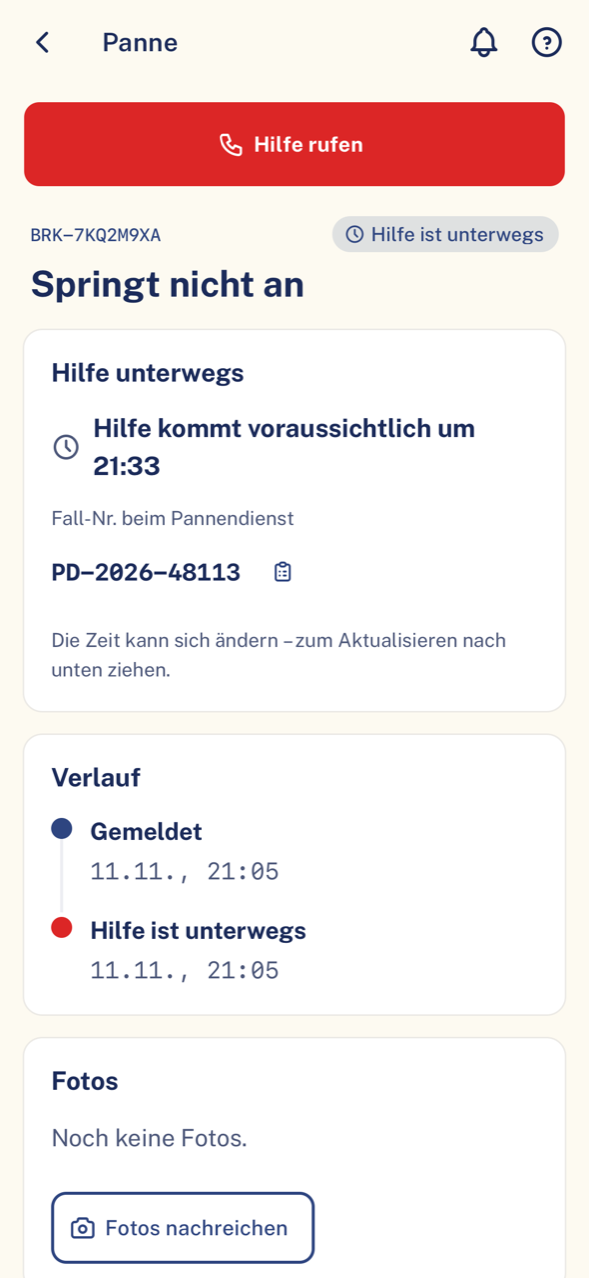
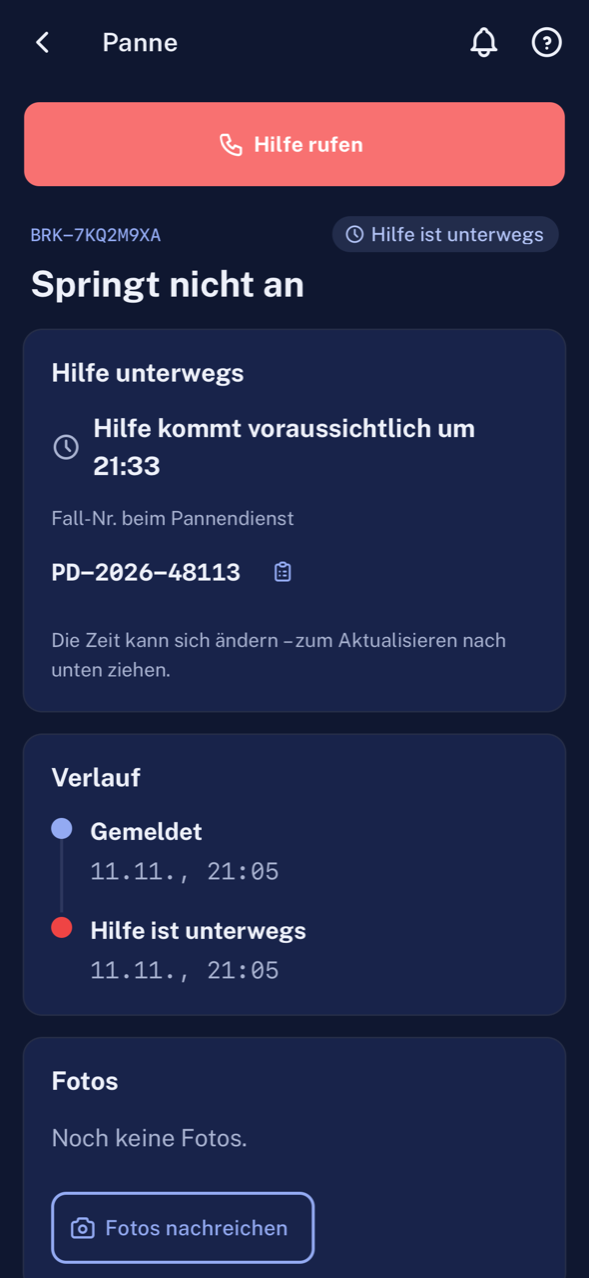
The driver sees the status of the help and the arrival time in the app.
Cover
In a breakdown the app immediately shows the cover on file, such as breakdown cover.
Arrival time
The towing service sets the appointment in the order. The driver sees the arrival time in the app; you see it in the breakdown file.
Case no.
The app shows the breakdown service’s case no.
Always up to date
The driver sees the arrival time in the app, even if it changes.
- Help requested
- Help is on the way
- Help is on site
- Resolved
- Towed
The five statuses of a breakdown, as the app names them. The status from the screenshot is highlighted.
 One breakdown, three partiesIllustration
- Driverreports a stranded vehicle with location
- Fleetcommissions the towing service via Clamio
- Towing serviceaccepts the order and sets the appointment
- Driversees the arrival time in the app
Example history of a breakdown, drawn without names and dates.
05Visibility
Fair to the driver
Drivers see no costs, cost bearers or insurance decisions. No driver rankings, no scores, no telematics analysis.
Own reports
Drivers see the status and documents of their own reports.
No amounts
Messages to partners and drivers contain no claim amounts.
One file, everyone sees their own section.
File · Driver’s viewIllustrationTheir section
- Own reportsvisible: status and documents
- Tasksvisible: with checklists, photos and comments
- Vehiclevisible: cover, mileage, inspection evidence
- Breakdownvisible: status of the help, arrival time, breakdown service’s case no.
- Violationspartly: own violations, without amounts
- Costsnot visible: hidden from drivers
- Liabilitynot visible: hidden from drivers
- Insurance decisionsnot visible: hidden from drivers
06Rollout
From invitation to first report
You invite. The driver signs in to the app and only sees their own cases.
Four steps
Illustration- 01InviteYou invite your drivers.
- 02Sign inThe driver signs in to the app and only sees their own cases.
- 03Report and completeThe driver reports cases, completes tasks and submits evidence. Reports land in the file in structured form.
- 04SteerYou handle the report; the driver sees the status.
Who works with the driver in one file
FleetHandles the report
The fleet steers
Drivers report via the app, partners work in the same file. You handle the report; the driver sees the status.
Solution for fleetsTowing serviceComes after a claim or breakdown
The towing service sets the appointment
The driver sees the status of the help and the arrival time in the app.
Solution for towing servicesFrequently asked questions
What fleets ask about the Driver app
How does the driver sign in?
The driver signs in to the app and only sees their own cases.
Does the driver see costs?
No. Costs, liability and insurance decisions are hidden from drivers.
Are there rankings?
No. No driver rankings, no scores, no telematics analysis.
In which languages is the app available?
The app interface is available in eight languages: German, English, Spanish, French, Italian, Polish, Portuguese and Turkish. The app speaks the driver’s language.
On which devices does the app run?
On iOS, Android and iPad, portrait and landscape.
Does the driver see their violations?
Yes. The driver sees their own violations without amounts and can upload documents.
What happens if the driver reports “not drivable”?
The vehicle is provisionally locked. The fleet confirms the lock or lifts it with a reason.
Demo
See Clamio for your drivers
In a demo we show you the Driver app and how reports arrive in the Fleet portal.