Privacy settings

Platform · Cases

Every case has its file.

Claim, breakdown, defect and violation: from the first entry to closure in one place.

Status, photos, documents, orders and deadlines are in the file. Each case type has its own statuses and its own rules.

Request a demo Compare four files

Breakdown and defect are add-on modules.

Four case types

  • Claim
  • Breakdown add-on module
  • Defect add-on module
  • Violation

One file each · Stations on this page

01Four files

Same principle. Four files of their own.

Choose a case type and see how it is reported, what the file records and which statuses exist.

Sections from the interface · Demo data

Claim

From the accident to settlement, everything is in the claim file.

Report
The driver reports in the app; you record in the portal. A report that has been started stays saved as a draft.
In the file
Photos and documents, orders to garage, assessor, towing service, car rental and law firm, the reserve and the settlement decision.
Special feature
Settlement letters are created from your templates.

Statuses in the interface

  1. Draft
  2. In review
  3. Approved
  4. In Progress
  5. Completed
  6. Closed

Alongside

  • Rejected
  • Cancelled
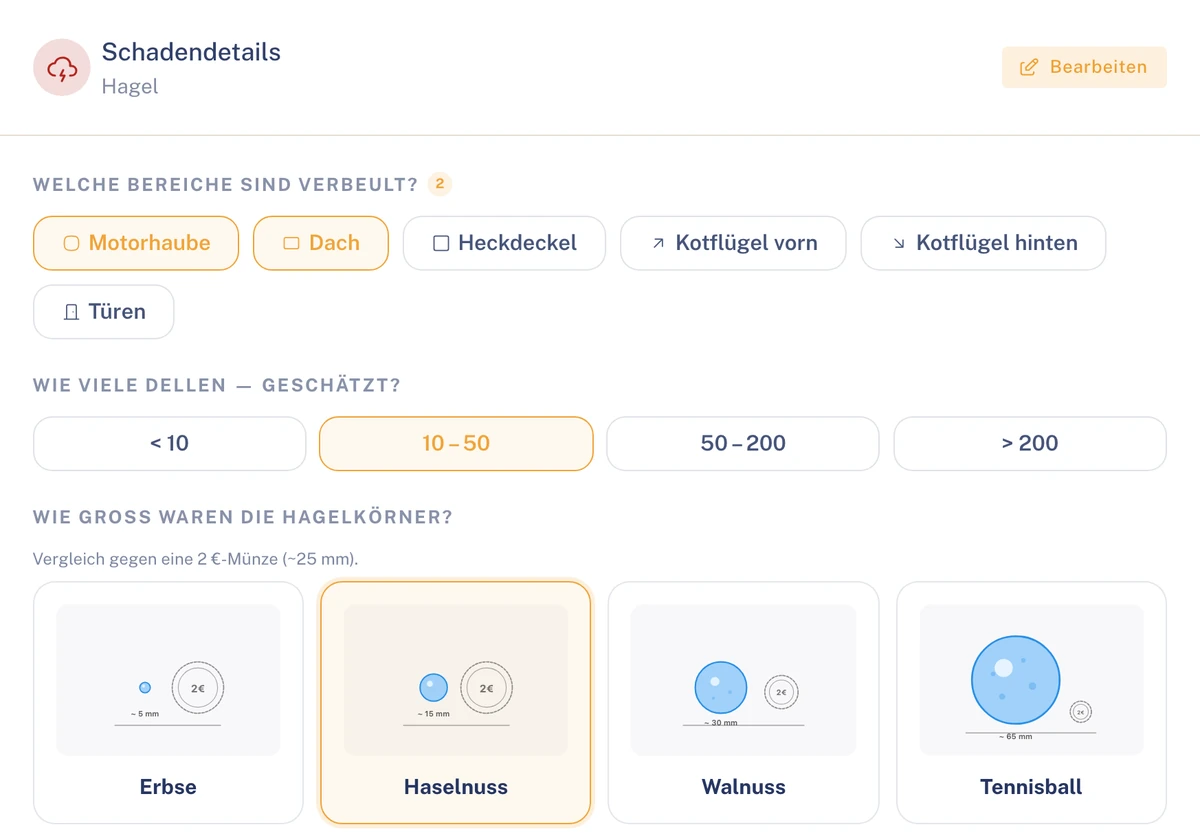
Section of the damage details for hail: selection of the dented areas, estimated number of dents and size of the hailstones.
Damage details per damage type, here hail.

Breakdown add-on module

From the report on the road until the journey continues.

Report
In the app the driver states the type of breakdown, whether the vehicle is drivable and whether they need towing, a rental car or a hotel, plus a photo.
In the file
Help orders to the towing service (breakdown assistance) or to your own service providers, the arrival time and the deadline until help arrives, with escalation.
Special feature
Clamio detects repeated breakdowns of the same vehicle.

Statuses in the interface

  1. Reported
  2. Help requested
  3. Help is on the way
  4. Help is on site
  5. Resolved
  6. Completed

Alongside

  • Towed
  • Cancelled
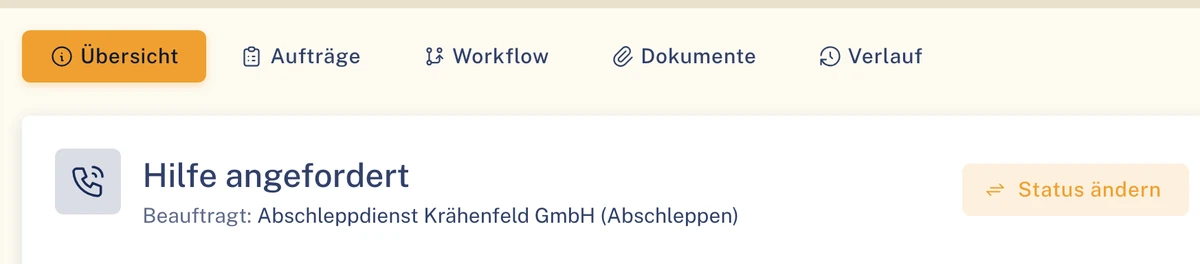
Section of the breakdown file: tabs Overview, Orders, Workflow, Documents and History, status Help requested with the commissioned towing service.
Breakdown file with the status “Help requested” and the commissioned towing service.

Defect add-on module

Defects on the vehicle, tracked until they are fixed.

Report
Driver or fleet reports the defect with category and photo. The driver states whether the vehicle is drivable.
In the file
The severity from “Note” via “Minor” and “Major” to “Critical”, from which priority and deadline follow, plus orders to the garage or to your own service providers.
Special feature
The garage reports the fix; the fleet then re-checks. “No defect” requires a reason.

Statuses in the interface

  1. Reported
  2. In review
  3. Confirmed
  4. In progress
  5. Resolved
  6. Completed

Alongside

  • No defect
  • Cancelled
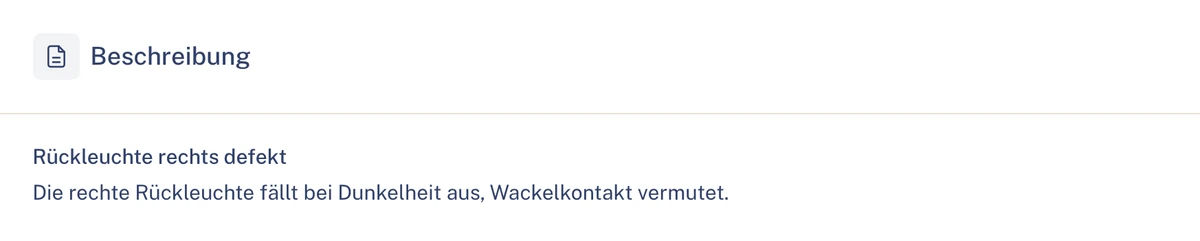
Section of the defect file: description right tail light defective; the tail light fails in the dark.
Description of a defect in the file.

Violation

The fleet’s warning fees and fines, with deadlines and procedural steps.

Report
You record the fine, hearing or driver nomination in the portal and assign vehicle and driver.
In the file
Deadlines, procedural steps and cost items: what the fleet pays and what can be recharged.
Special feature
The fleet decides whether to recharge the driver.
Closure
Closure requires a reason: “Proceedings dropped”, “Entered in error” or “Paid”.

Statuses in the interface

  1. New
  2. Paid
  3. Completed

Alongside

  • Disputed
  • Legal
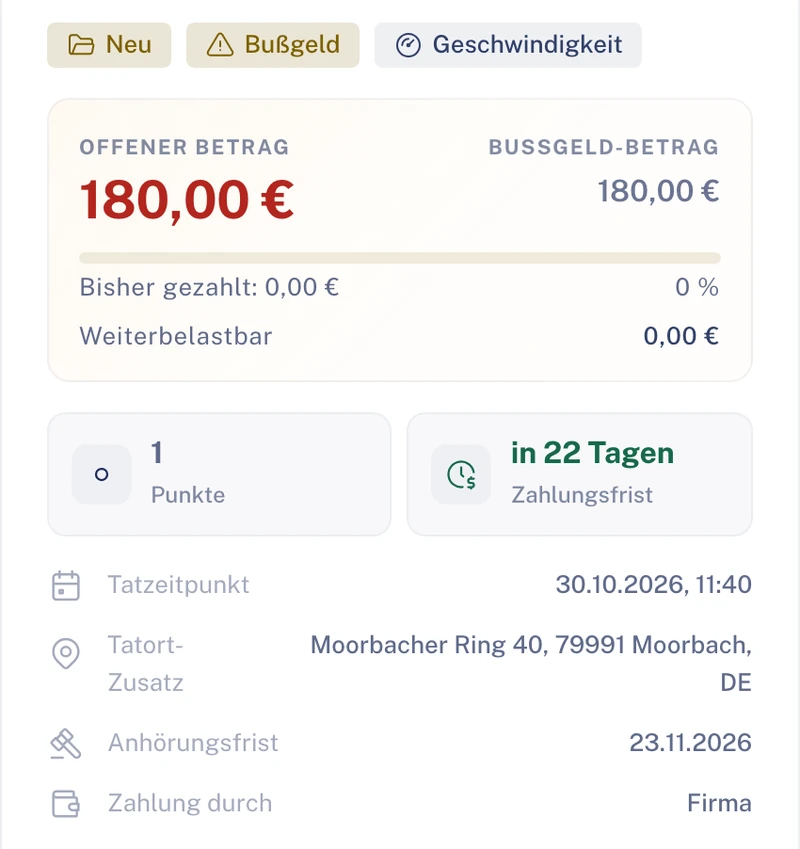
Section of the violation file: fine for speeding, open amount, points, payment deadline, time of the offence, hearing deadline and payment by the company.
Violation file with hearing deadline and payment deadline.

02Report

Reports are made where it happens.

On the road the driver reports in the app. In the office you record cases in the portal or hand them over from your systems via an interface.

  • In the app, vehicle, mileage and location are prefilled.
  • Photos are part of the report and are then in the file.
  • The app speaks the driver’s language.

One list per case typeClaims, breakdowns, defects and violations are in separate lists in the portal, with search, filter and status.

From the interface

Demo data

Section of the claims list: key figures Total and In review, search, status filter and two claims with the statuses Draft and In review.
The claims list with key figures, search and status.

03File

The status at the top, the tabs below.

Tabs organise what belongs to a case. That way each role finds its part without searching the whole file.

Tabs of the claim file

  • Damage & photos
  • Requests
  • Service activity
  • Workflow with Automation
  • Communication
  • Documents
Depending on permission, “Costs”, “Receivables” or “Settlement” are added.

Tabs of the breakdown file

  • Overview
  • Orders
  • Workflow with Automation
  • Documents
  • History
The status is shown above the tabs.

Tabs of the violation file

  • Proceedings
  • Receivable
  • Payments
  • Receivables
  • Recharge
  • Audit log
  • Orders
  • History
  • Attachments
Some tabs only appear with the matching permission.

Tab names follow the interface. Amounts are only seen by those with the “Read costs” permission.

04Deadlines and lock

Deadlines run alongside. For critical defects the lock applies.

Each case type brings its own deadlines. If the driver reports “not drivable”, the vehicle is provisionally locked.

  • Defect: priority and deadline follow from the severity.
  • Breakdown: the deadline until help arrives runs alongside, including escalation.
  • Violation: hearing deadline and payment deadline are in the file.

When Clamio locks

At critical severity Clamio locks the vehicle automatically if your organisation has set it up that way. A lock applies to new assignments. Current assignments and orders remain in place. Whether a new assignment only warns or is blocked is set by your organisation.

Illustration · Lock after a driver report

  1. “Not drivable” reportedThe driver states it for a breakdown or a defect.
  2. Provisionally lockedThe driver reads: “Please do not use the vehicle, fleet informed”.
  3. The fleet checksTask “Check lock”.
  4. Confirmed or liftedConfirm lock or lift with a reason
Dashed: provisional, until the fleet has decided. Clamio never lifts a lock itself.

05Convert

One case becomes the next.

If it only becomes clear later what the matter really is, you change the case type instead of starting again.

  • Breakdown becomes claim

    A breakdown can be converted into a claim.

  • Defect becomes claim

    A defect can also be continued this way once it has become a claim.

  • HU result becomes defect

    If the result of an HU is “dangerous” or “unroadworthy”, Clamio automatically creates a defect.

Orders to garage, towing service or your own service providers are always attached to the case they belong to.

06History

What has happened remains on record.

Changes to cases, approvals and data sharing are in the audit log, with person and time. Anyone who joins later reads the status instead of asking.

  • The claim file includes a history with a timeline.
  • Clamio keeps the reserve as a complete history.
  • The settlement decision is documented in the file.
  • With Automation, the “Workflow” tab shows which step was triggered when.

What the driver seesThe driver sees the status of their cases in the app. They do not learn who at the fleet acted: it says “Fleet” there.

07Frequently asked questions

Quick questions

Breakdown and defect are add-on modules.The “Workflow” tab requires Automation to be booked.

Who may lock a vehicle and lift the lock again?

If the driver reports “not drivable”, the vehicle is provisionally locked. The fleet confirms the lock or lifts it; lifting requires a reason. You can also lock a vehicle by hand.

Does the driver see their violation?

Yes. The driver sees their own violations in the app, without amounts, and can upload documents.

What does a law firm get to see for a violation?

If you instruct a law firm with a violation, it receives an instruction sheet with the data of the violation, not the file.

Is a claim settled automatically?

No. A person decides on coverage and settlement. Clamio documents the decision in the file.

Keeps it rolling.

In a demo we open one file of each type with you: claim, breakdown, defect and violation.

What happens after the report? See Automation