
Law firm portal · For instructions when a claim occurs
Legal action in the same file
In the Law firm portal you work on the claim with the fleet, the underwriting agent (MGA) and the insurer. For a claim, the fleet’s workflow can address approvals to you, e.g. on settlement. Then you decide.
- Instructions for individual cases: for a claim, also for a violation
- For a claim you decide approvals that a workflow addresses to you
- Record the dispute amount and invoice in the same portal
Assert claims against the opposing insurer
Starting point
What slows down the case today
Three places where things get stuck today, and what Clamio does there.
-
Requesting documents
Expert report, police report and photos arrive one by one and often only on request.
With ClamioYou see the documents shared with you, plus Damage Arrival with description, photos and damage sketch.
-
Coordination by mailing list
Queries run through long email chains with changing recipients.
With ClamioYou reach fleet, MGA and insurer directly in the file’s discussion.
-
Decisions without a record
Who agreed and when is hard to prove later.
With ClamioFor a claim, the fleet’s workflow can address approvals to you, e.g. on settlement. Then you decide. Your decision is in the audit log with person and time.
01Case
One case, your section
Each partner works in their own portal and only sees the cases for which they have an order.
- 01Report
- 02Review
- 03Partner selectionThis is where you get on
- 04Approval
- 05Settlement
- 06Closure
Individual cases
You receive instructions for individual cases: for a claim, also for a violation.
Instruction for a violation
The fleet creates the violation and assigns the driver; if desired, a law firm takes over. Legal steps are always decided by the fleet.
Accept or decline
The order arrives as a request or direct commission, in the portal and by email. You accept with one click, after a confirmation prompt, or decline.
Documents
You see the documents shared with you, such as the expert report or police report, if they have been shared.
One file, everyone sees their own section.
 File · Law firm’s viewIllustrationYour section
- Your ordervisible: as a request or direct commission
- Damage Arrivalvisible: with description, photos and damage sketch
- Discussion in the filevisible: with fleet, MGA and insurer
- Documentspartly: those shared with you
- Amountspartly: your own order amounts, others only as far as shared
- Cases without an ordernot visible: do not appear for you
- Workflow historynot visible: you do not see it, only your approval
- Reviewnot visible: partners never see it
02Workflow
From order to an agreed course of action
The fleet defines the process. For a claim, its workflow can address approvals to you, e.g. on settlement. Then you decide. The process waits until the decision is made.
For a claim, the fleet’s workflow addresses the approval to youYou decide your approvals

Station 01 · Order
Accept a request, with one click
Orders reach you in the portal and by email, as a request or as a direct commission.
- Your cases are in the “Legal cases” list.
- You accept or decline; when declining you can give a reason. Before accepting, the portal asks once: “Do you want to accept this legal case?” The fleet’s claims handlers will be notified.
- You only see cases in which you are commissioned.
- Clamio
- delivers the order in the portal and by email
- You
- accept it in the portal
Accept CaseScreenshot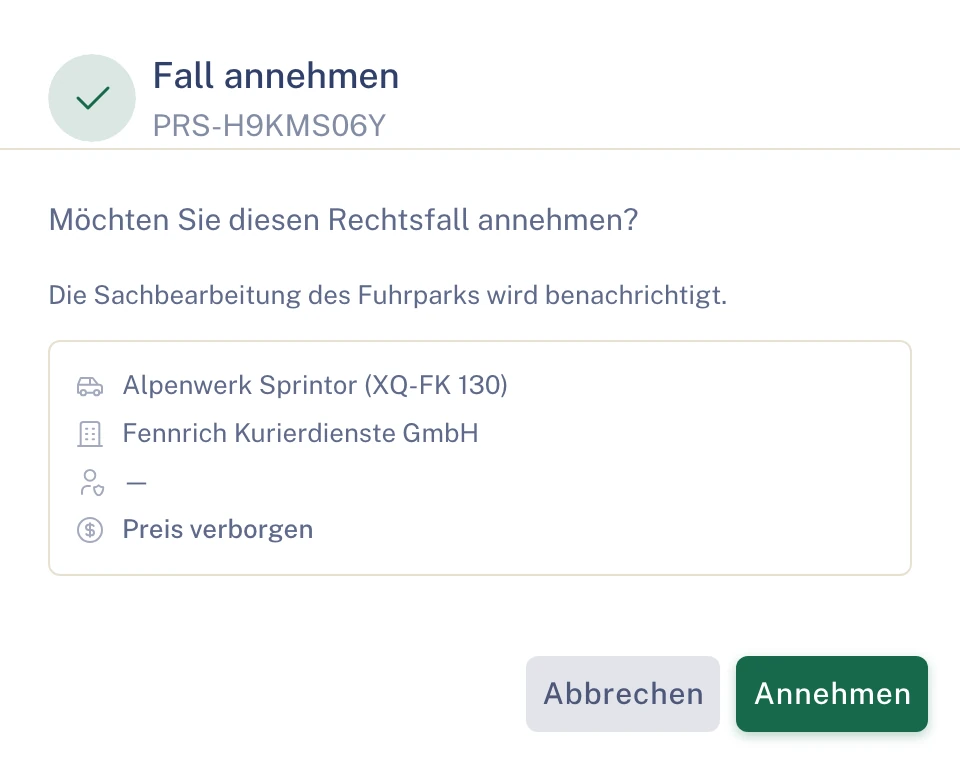
Station 02 · Documents
The documents are in the file
Damage Arrival shows description, photos and damage sketch. You also see the documents shared with you, such as the expert report or police report, if they have been shared.
- Document shares and downloads are in the audit log with person and time.
- Clamio
- logs every share and every download
- You
- go through the shared documents
Damage ArrivalScreenshot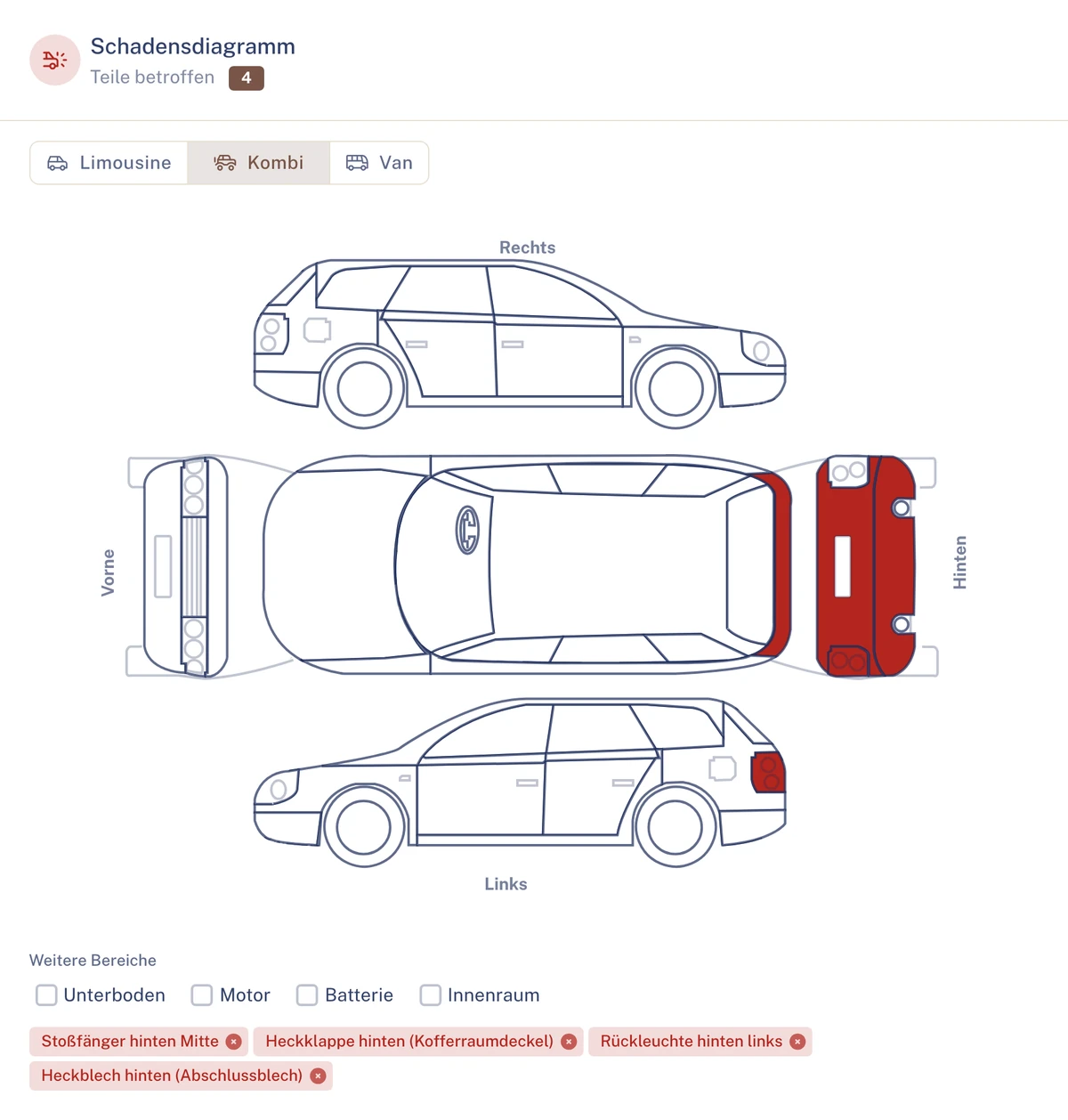
Station 03 · Approval
This is where you decide
The fleet’s workflow addresses an approval to the law firm commissioned on the claim. You decide, with person and time in the audit log.
- A rejection always comes with a reason.
- The result is seen by you, the fleet and, with delegated authority, the MGA.
- If the four-eyes principle is switched on, two people confirm from an amount limit upwards.
- Clamio
- presents the approval to you and waits until the decision is made
- You
- approve or reject with a reason
Approval for a claim · addressed to the law firmIllustrationApproved: your decision is in the audit log with person and time.
You do not see the workflow history, only the approval addressed to you.
Station 04 · Letters
Letters and documents into the file
You place letters and documents in the file. Legal documents are held there as a document type of their own.
- Every upload and every download is logged.
- You settle queries in the file’s discussion.
- Clamio
- holds legal documents as a document type of their own and logs
- You
- place letters and documents in the file
Documents · Legal documentIllustrationDrawn without names and dates. In the file every entry is shown with person and time.
Station 05 · Done
Service rendered, “Completed” reported
Once your service is rendered, you set the status to “Completed”.
- The status runs from “Received” via “Accepted”, “In Progress” and “Completed” to “Invoiced”.
- Clamio
- keeps the case history with every step
- You
- set the status to “Completed”
Case historyScreenshot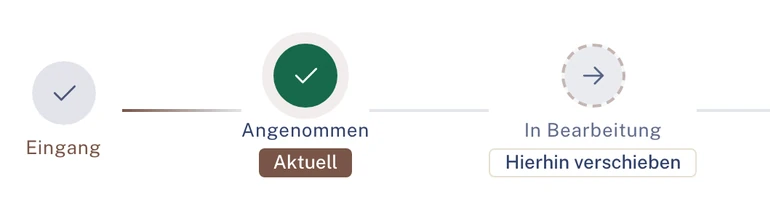
Station 06 · Invoicing
Dispute amount, invoice, “Invoiced”
You record the dispute amount and submit the invoice in the same portal.
- The payer reviews and approves it. A rejection always comes with a reason.
- You see the status of your invoice through to “paid”.
- After invoicing you set the order to “Invoiced”.
- Clamio
- presents the invoice to the payer
- You
- submit the invoice and set “Invoiced”
Invoice · in the same portalIllustrationYour details
- Dispute amount
- Invoice
The payer reviews and approves the invoice.
After invoicing you set the order to “Invoiced”. Drawn without amounts.
Approvals, document shares and downloads are in the audit log with person and time.
Who defines the process
The fleet. Your decision steers the rest of the process, just as the fleet has defined it.
Who decides
For a claim, the workflow can address approvals to the law firm, e.g. on settlement. Then the law firm decides.
Who sees the result
The law firm, the fleet and, with delegated authority, the MGA. The law firm does not see the workflow history.
Discretion stays with people
The process waits until the decision is made. Clamio never decides itself.
02.1Approval
The process waits for your decision
- The process waits until the decision is made.
- Clamio never decides itself.
- Notifications in the portal and by email, in the recipient’s language.
One approval, four stages
Illustration- 01Approval to youFor a claim, the fleet’s workflow addresses it to the law firm.
- 02The process waitsUntil your decision.
- 03Your decisionApprove or reject with a reason.
- 04The process continuesAfter your decision.
The fleet defines the process.
03File
In the file instead of the mailing list
You reach fleet, MGA and insurer directly in the file’s discussion instead of via an email distribution list.
Legal documents
They are held in the file as a document type of their own. Every upload and every download is logged.
Documents
You see the documents shared with you, such as the expert report or police report, if they have been shared.
Discussion
The “Discussion” tab per file, with fleet, MGA, insurer and the partners commissioned.
Case history
The case history shows every step.
File · Case historyIllustration- Fleetcommissions the law firm
- Law firm · Youaccept the order
- Fleetshares expert report and police report with you
- Law firm · Youplace a letter in the file
- Insurerasks in the file’s discussion

Example history, drawn without names and dates.
04Invoicing
Invoicing in the same portal
You submit your invoice in the same portal; the payer reviews and approves it. After invoicing you set the order to “Invoiced”.
- You record the dispute amount and invoice in the same portal.
- The payer decides; a rejection always comes with a reason.
- You see your own order amounts. Other amounts of the claim only as far as they are shared.
- Draft
- Submittedin the same portal
- In reviewwith the payer
- Approvedor “Rejected”, then always with a reason
- Paid
Drawn without amounts.
Order information · Law firm portalScreenshot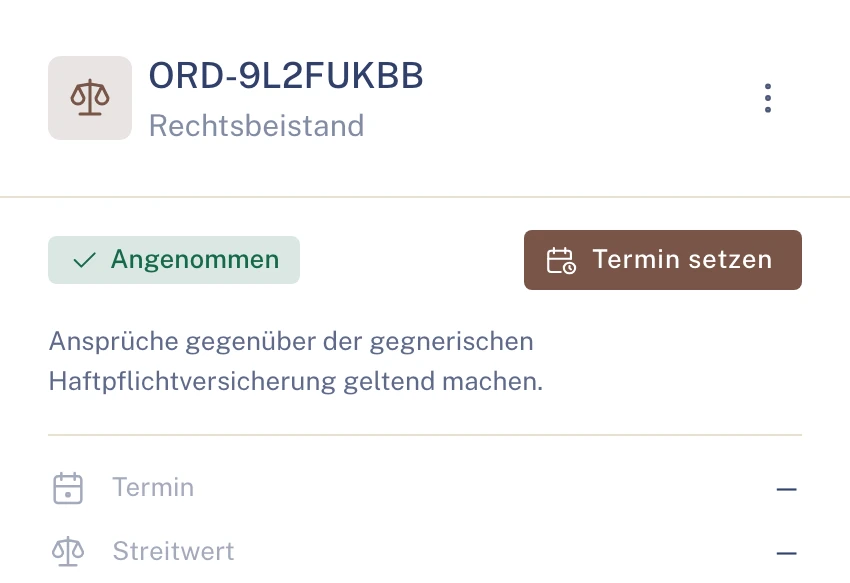
05Collaboration
You advise, everyone works in one file
You work in the same file as fleet and insurer and only see what concerns your order.
FleetCommissions and shares
The fleet shares what you need for the case
Legal steps for violations are always decided by the fleet.
Solution for fleets
Underwriting agent (MGA)Settlement on behalf
You see who has acted
The MGA’s settlement decision carries the label “on behalf of”.
Solution for underwriting agentsInsurerClaims settlement
The insurer in the same file
You settle questions in the file’s discussion. Answers do not get lost in email distribution lists.
Solution for insurers


Other service providersOrders when a claim occurs
Each partner in their own portal
Garages, assessors, towing services and car rental providers work in the same file, each in their own portal.
Solution for service providersAlso in the Law firm portal
- Calendar with appointments
- Discussion in the file
- Documents
- Invoices
- Case history
Everyone sees only their own section
- Own cases and orders
- Each organisation sees its own cases and those for which it has an order or delegated authority, or which it insures.
- Own amounts only
- Partners only see amounts of their own orders and invoices.
- Data in the EU, encrypted in transit
- Data stored in data centres in the EU; transmission is encrypted (TLS).
Frequently asked questions
What law firms want to know in advance
For which cases do I receive instructions?
For individual cases: for a claim, also for a violation.
Who decides on legal steps for violations?
Always the fleet.
Which approvals do I decide?
For a claim, the approvals that a workflow addresses to you. For violations the fleet approves.
Do I have to give a reason if I decline a case?
No. When declining you can give a reason; it is not mandatory.
How do I invoice?
You record the dispute amount and submit the invoice in the same portal. After invoicing you set the order to “Invoiced”.
Demo
Get to know the Law firm portal
In a demo we show you how law firms work on the claim in the portal.