 Garage portalFor repair and glass orders
Repair orders without double entry
Solution for garages- Accept or decline repair and glass orders
- Set appointment, report progress, through to “Done”
- Upload cost estimate, photos and documents to the file
Service provider portals· For orders after a claim or breakdown
Garages, assessors, towing services, car rental providers and law firms work in the same file as fleet and insurer. Orders, appointments, documents and invoices run digitally.
Starting point
Three places where things get stuck today, and what Clamio does there.
Requests come by phone and email, differently for every fleet.
With ClamioThe request arrives in the portal and by email. You accept or decline.
Status and appointments are asked about one by one.
With ClamioYou set appointments, upload documents to the file and report the status. You settle queries in the file’s chat.
Whether the invoice has arrived and been reviewed, you only learn on asking.
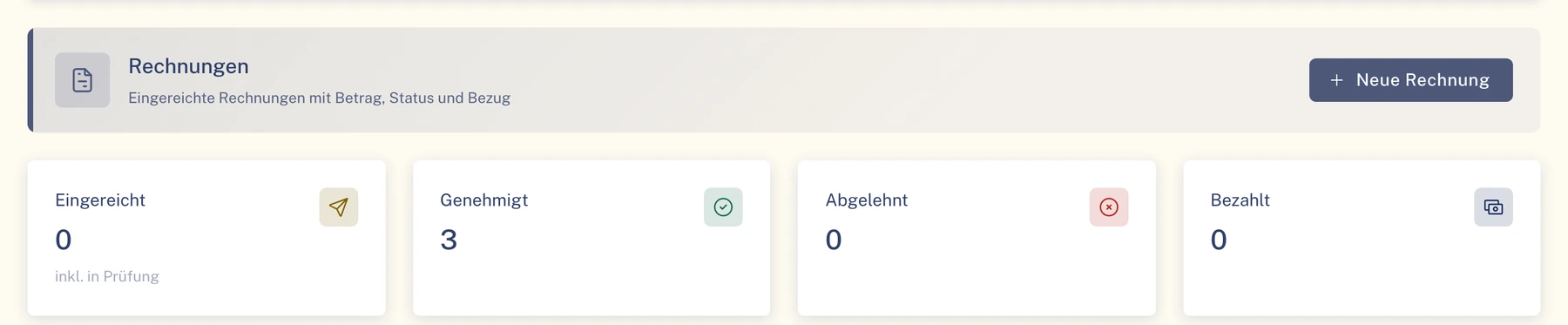
With ClamioYou submit the invoice in the same portal and see its status through to “Paid”.
01Process
Five partners, four shared steps. Each portal shows the status of the order in its own words.
| Partner | Order | Accept | Work in the file | Invoicing |
|---|---|---|---|---|
| Garage |
|
|
|
|
 Assessor |
|
|
|
|
 Towing service |
|
|
|
|
 Car rental |
|
|
|
|
 Law firm |
|
|
|
|
Side paths in every portal: Declined, CancelledGlass orders in the Garage portal: Installation, Glass Ordered, Done, Invoiced
The request arrives in the portal and by email. Garage, assessor, towing service and law firm see the description, photos and damage sketch in Damage Arrival.
You accept or decline. Before accepting, the portal asks once for confirmation. When declining you can give a reason.
You set appointments, upload documents to the file and report the status. You settle queries in the file’s chat.
You submit the invoice in the same portal. After invoicing you set the order to “Invoiced”.
02Workflow
The fleet defines its process as a workflow. In the step “Order a provider”, Clamio asks the partners: at the same time or one after another. You accept or decline.
1Fleet · Workflow
The fleet chooses the type in the process. Exactly one always applies.
2Clamio · Dispatch
The request arrives in the portal and by email.
After your answer
3Your portal
Accept OrderOrder 0001
Are you sure you want to accept this order?
The fleet’s claims handlers will be notified.
CancelAccept
Decline OrderOrder 0001
The request will be declined.
The fleet’s claims handlers will be notified.
Reason
Reason…
CancelDecline
Message afterwards: Request accepted
Reconstruction of the “Accept Order” dialog using a garage order as an example, with sample values. For the law firm it is called “Accept Case”.
02.1Per partner
One example per partner. “With workflow” applies if the fleet uses a workflow.
GarageWith workflowYour cost estimate is approved before the repair, by the party the fleet defines.
AssessorWith workflowThe process continues as soon as the expert report is submitted.
Towing serviceOn the orderYou set the appointment. The driver sees the status of the help and the arrival time in the app.
Car rentalWith workflowYou confirm rental car handover, return and extension directly in the portal.
Law firmWith workflowYou get on at “Partner selection” with the instruction. For a claim, the workflow can address approvals to you, e.g. on settlement. Then you decide.
03File
You work in the same file as fleet and insurer and only see what concerns your order.
04Portals
Each partner works in their own portal and only sees the cases for which they have an order. Garage, assessor, towing service, car rental and law firm register themselves.
Garage portalFor repair and glass ordersAssessor portalFor expert report ordersTowing portalFor call-outs after a claim or breakdownCar rental portalFor replacement vehicles after a claim or breakdownLaw firm portalFor instructions when a claim occursFrequently asked questions
Garage, assessor, towing service, car rental and law firm register themselves.
The request arrives in the portal and by email.
No. When declining you can give a reason; it is not mandatory.
You see your own order amounts. Other amounts only as far as they are shared.
You submit the invoice in the same portal and see its status through to “Paid”. After invoicing you set the order to “Invoiced”.
Yes. Without your own account you take part via a protected order link.
In a demo we show you how requests, orders and invoicing run in the partner portal.
Prefer to see your portal first?