IndustriesConstruction
Construction
Vehicles change hands, responsibility stays clear.
Vehicles and vans move between sites and teams. Small damage and defects easily get left until a vehicle fails.
- Inspection duties (UVV)
- defects must not be left
- vehicles move between teams
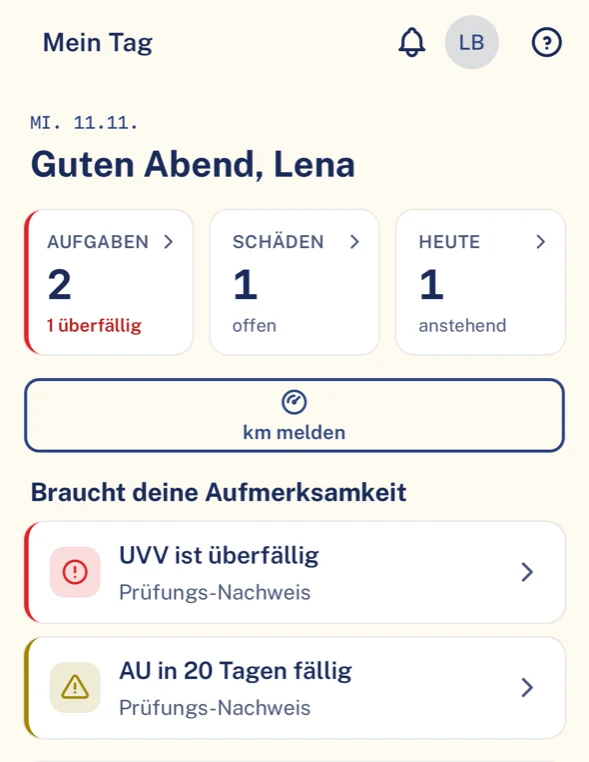
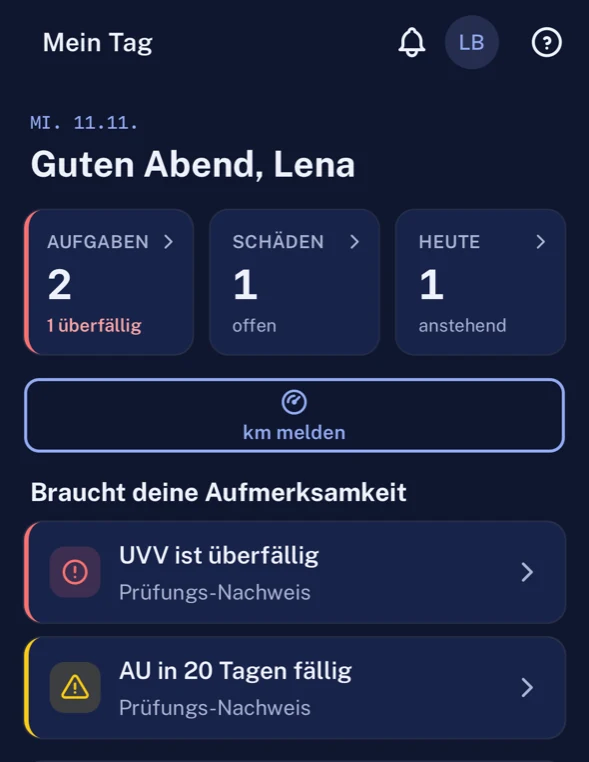


Starting point: construction
What gets left on site
In construction a lot is called out and little is written down. That is exactly where defects, damage and inspection dates get lost.
The defect is called out to the foreman and forgotten by the evening.
With ClamioThe driver reports it with a photo in the app. From then on there is a defect file with status and deadline.
A tipper with a faulty light sets off anyway.
With ClamioAt critical severity or “not drivable” the vehicle is locked automatically. Your organisation sets this.
The inspection report names a dangerous defect and ends up in a folder.
With ClamioA result of HU, AU or UVV with the defect level “dangerous” or “unroadworthy” automatically creates a defect.
The flatbed has a dent. Which crew had it last?
With ClamioDrivers are assigned to vehicles for a period. That way you see to whom the vehicle was assigned when.
The UVV inspection is overdue, and nobody noticed.
With ClamioClamio keeps the due date per vehicle and reminds ahead of time, the fleet as well as the driver.
The garage has done the repair, but nobody knows.
With ClamioIt reports the fix in its own portal. The fleet then re-checks.
Everyday construction
Three cases from the yard
Case 1 · DefectAdd-on module
The rear light on the van is faulty
Half past six at the yard, the crew wants to set off. The rear light is not working, and the driver’s mind is already on the site.
Photo and report
Whose turn: Driver
The driver reports the defect with a photo in the app. They state whether the vehicle is drivable.
Classify
Whose turn: Fleet
The fleet sets the severity. Priority and deadline follow from it.
Lock
In the file
If the defect is critical, the vehicle is locked automatically if your organisation has set it up that way.
Garagewith Automation
Whose turn: FleetGarage
The workflow asks the garage of your choice. It accepts in the portal and sets the appointment.
Report fix
Whose turn: Garage
The garage selects the fixed defects and describes the work. Mileage and photos are possible but not mandatory.
Check
Whose turn: Fleet
The fleet re-checks. The file shows report, order and fix.
- On the tablet
- The Driver app runs on iOS, Android and iPad, portrait and landscape.
- Notice to the driver
- After a lock: “Please do not use the vehicle, fleet informed”.
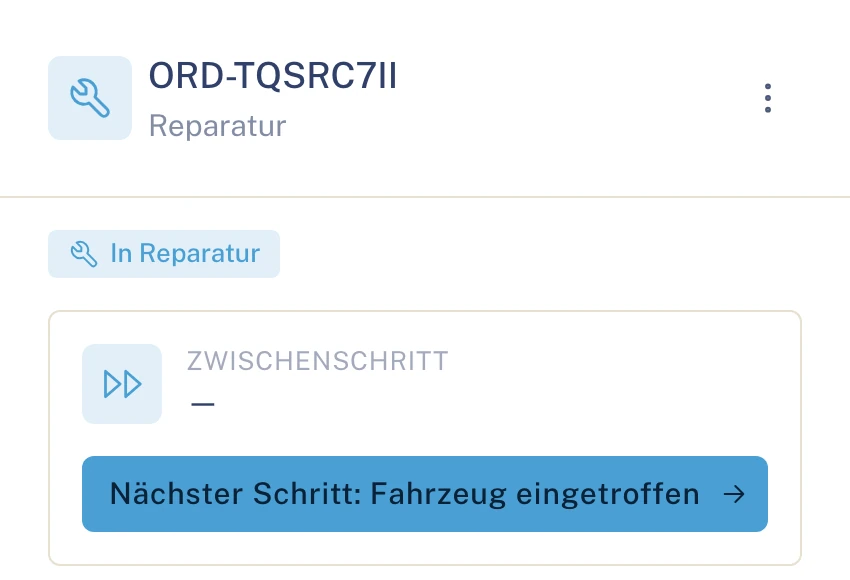
Case 2 · Claim
A van changes crew; damage is noticed later
Monday structural work, Wednesday civil engineering: the same vehicle, two teams. Two weeks later someone discovers a dent.
New assignment
Whose turn: Fleet
The fleet assigns the van to the new driver, with from and to dates.
Report a claim
Whose turn: Driver
The driver reports the claim with guidance in the app: select vehicle part, photos, location.
Claim file
Whose turn: Fleet
The claim file shows vehicle and driver. The assignments show to whom the vehicle was assigned when.
Order
Whose turn: Garage
The garage receives the repair order, accepts and reports progress in its portal.
Invoicing
Whose turn: GarageFleet
The invoice comes in via the garage’s portal and is reviewed in the same file.
- What the driver sees
- Claim report and its status. No amounts.
- For commercial management
- Vehicle, driver and costs of the claim are in one file.
Case 3 · Deadline
A vehicle’s UVV inspection is due
Inspection duties come round again, reliably and always at the wrong moment. What matters is that the deadline announces itself before it expires.
Due date
Whose turn: Fleet
Clamio keeps the due date per vehicle for HU, AU and UVV.
Reminder
Whose turn: Fleet
Clamio reminds ahead of time. The deadline is in the fleet’s agenda.
Note
Whose turn: Driver
The driver sees the inspection due in their app, by the same rule.
Result
Whose turn: Driver
After the appointment the driver submits the inspection result in the app.
Confirm
Whose turn: Fleet
The fleet confirms. If the result names a dangerous defect, a defect file is created automatically.
- Lead time
- How early the reminder comes, you set per inspection type.
- Scope
- Clamio reminds and documents. The inspection itself is carried out by your inspection body.
Illustration Thick line: the case in Clamio. Coloured lines: who acts. Filled station: rule or automation.
Workflow in constructionwith Automation
Defect reported: the vehicle stays put, the garage is booked
From the reported defect to the re-check runs a process that you define once. Nobody has to remember to call the garage.
How severe is the defect on the van?
Minor or major: deadline
- Defect reported
- Severity and deadline
- Garage commissioned
- Fix reported
- Re-check
Priority and deadline follow from the severity. The deadline is in the defect file until the garage reports the fix and the fleet has re-checked.
Critical: automatic lock
- Defect reported
- Vehicle locked
- Garage commissioned
- Fix reported
- Re-check, lift the lock
At critical severity or “not drivable” the vehicle is locked automatically; the organisation sets this. The driver is informed: “Please do not use the vehicle, fleet informed”.
Driver reports “not drivable”: provisional lock
- Defect reported
- Provisionally locked
- Fleet checks the lock
- Garage commissioned
- Fix, re-check
If the driver reports “not drivable”, that locks the vehicle provisionally; the fleet confirms or lifts the lock, lifting with a reason.
Illustration Clamio never lifts a lock itself. A person does that, with a reason.
From defect to re-check
Ask the garage
In the step “Order a provider”, your garage is listed under “Partner selection” as a fixed or preferred partner.
Approve the cost estimate
If the garage submits a cost estimate, the process waits. Approval is given before the repair, by the party you define.
Appointment in the calendar
The garage sets the appointment in its portal. It is in its calendar and on the order.
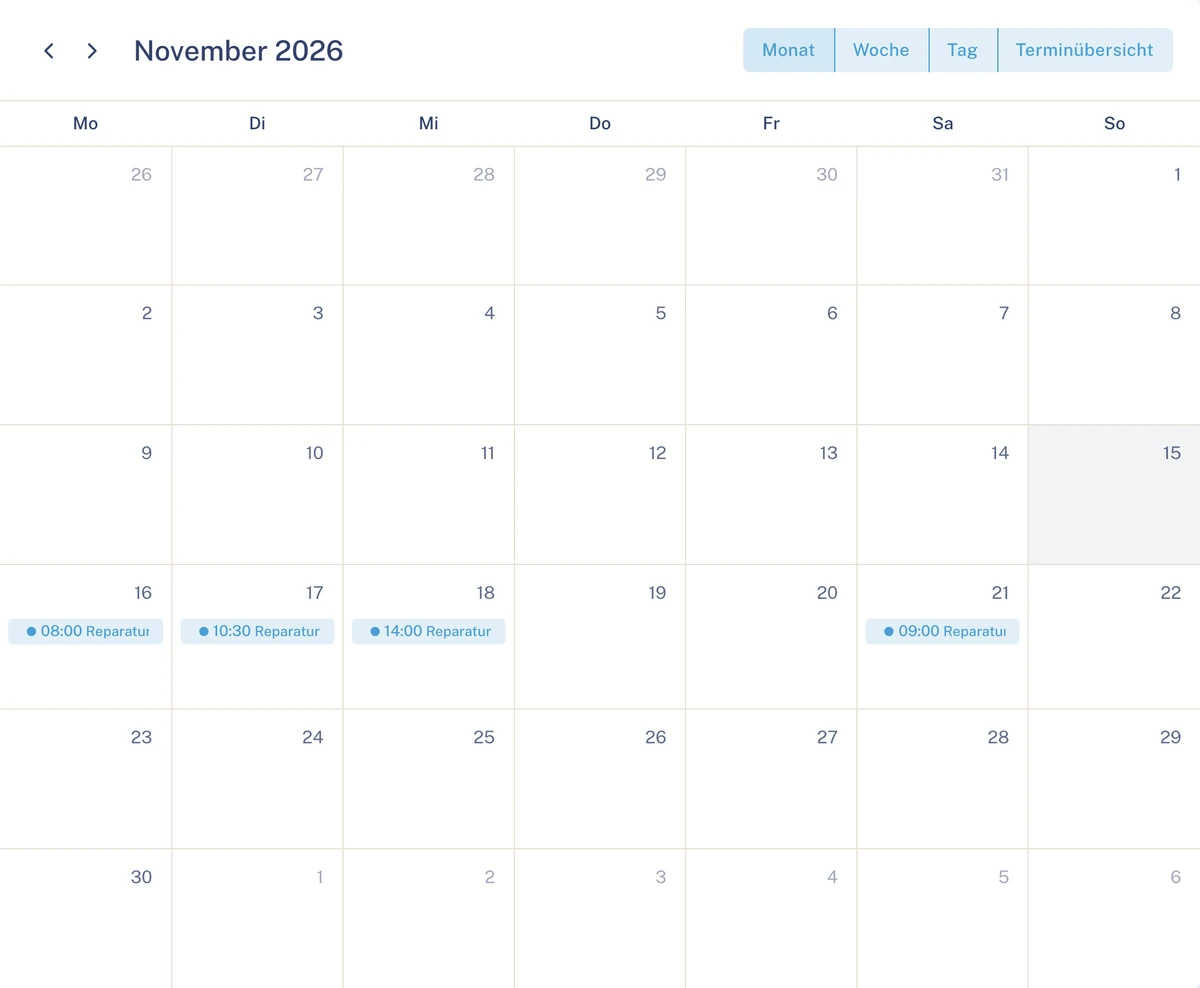
Calendar in the Garage portal. Sample data. Fix and re-check
With “Report fix” the garage hands the defect back. The fleet re-checks; it lifts a lock itself, with a reason.
Defect is an add-on module. Requirement for asking the garage automatically: Automation booked. See Automation
Assignment and deadlines
To whom the vehicle is assigned and what falls due
Changing drivers and inspection dates are what most easily get lost on site. In Clamio both are attached to the vehicle.
Driver and vehicle
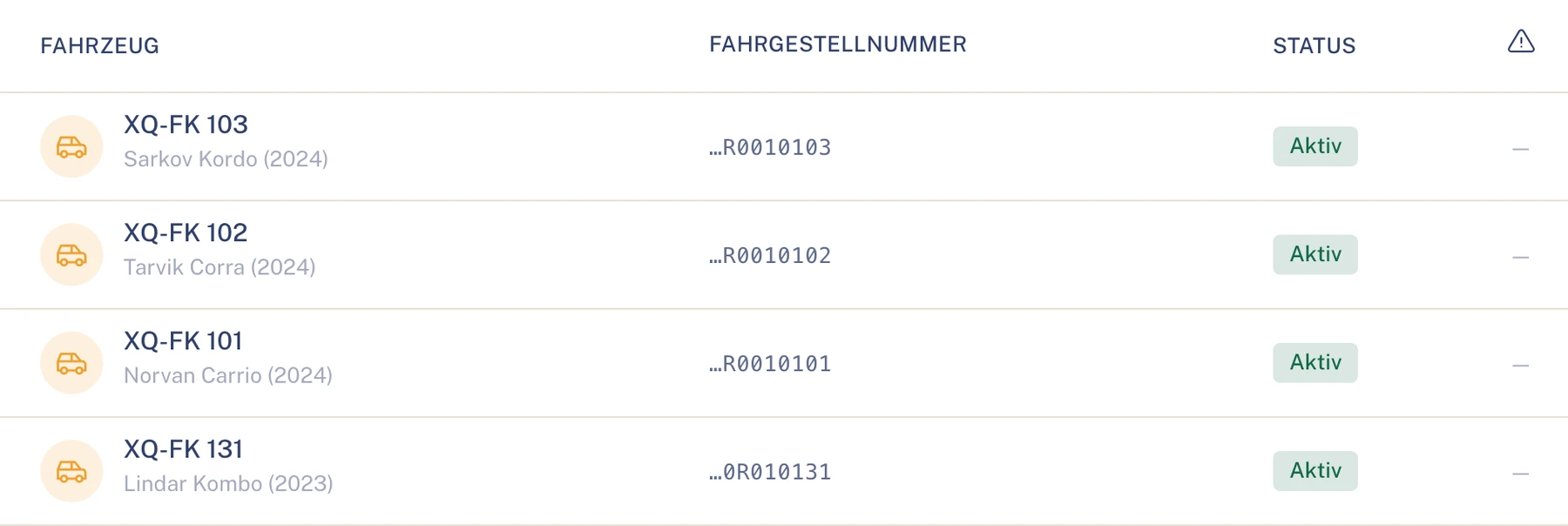
- Drivers are assigned to vehicles for a period.
- In the app the driver sees their current vehicle.
- Several drivers can be signed in on a shared tablet.
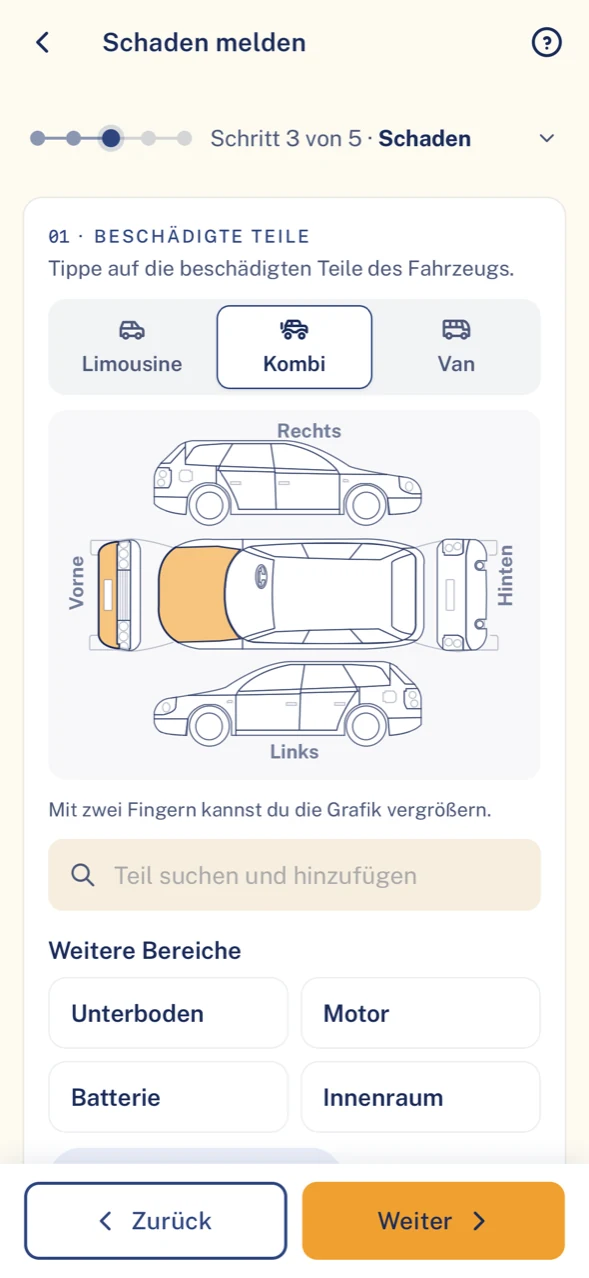
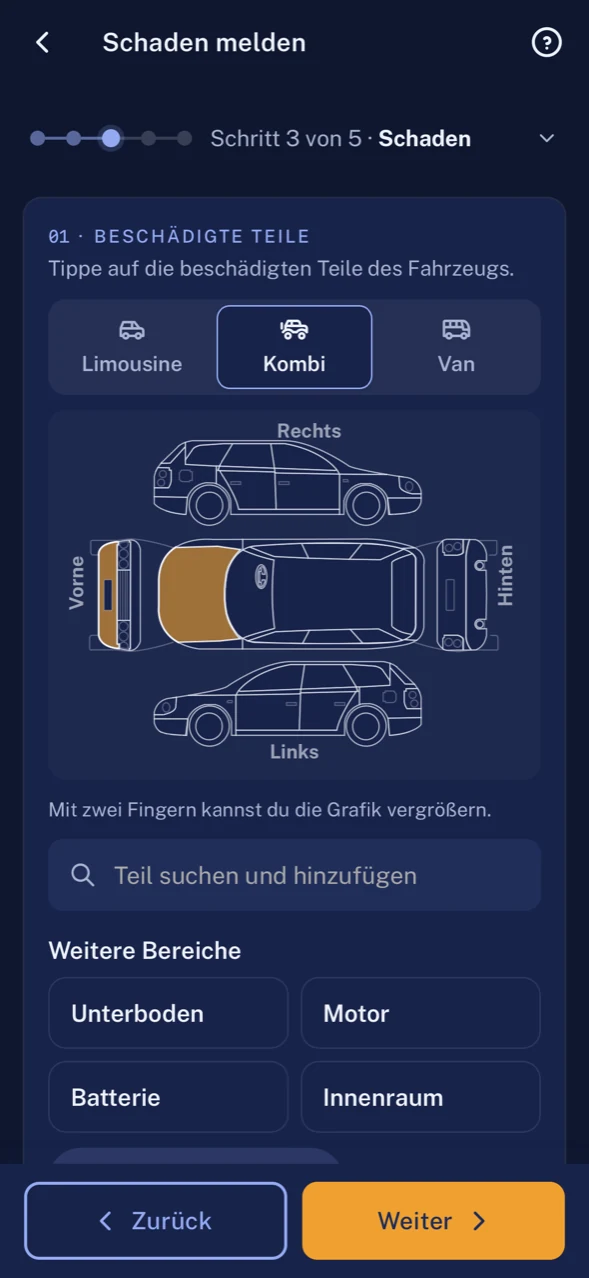
- The claim report leads in steps through vehicle parts, photos and location.
Deadlines and locks on the vehicle
- HU, AU and UVV per vehicle with due date and reminder ahead of time.
- The driver submits the inspection result in the app; the fleet confirms.
- Locking is automatic or by hand. Lifting is always done by a person, with a reason.
- Anyone who reassigns a locked vehicle sees the warning “The vehicle is locked.”
Benefits in construction
What your business gets out of it
Your fleet management
Defects do not get left: each has a file, a deadline and finally a re-check.
Your site management
In the morning it is clear which vehicle may be driven. Locked vehicles are marked.
Occupational safety
Inspection duties stay in view: HU, AU and UVV with due date, reminder and confirmed result.
Drivers on site
Report defect and claim on one device, including on the tablet in the site cabin.
Modules in construction
What matters most in construction
In construction, defect, lock and inspection deadlines come first. All other Clamio functions remain available.
Defect
Add-on moduleReport with a photo, severity from note to critical, deadline from the severity. The garage reports the fix, the fleet re-checks.
Vehicle lock
Automatically for a critical defect or by hand by the fleet. Clamio never lifts a lock itself.
HU, AU and UVV
Due date per vehicle, reminder ahead of time. A dangerous inspection result automatically becomes a defect.
Vehicles & drivers
Assignment with period, vehicle groups and, per driver, the driving licence classes with validity.
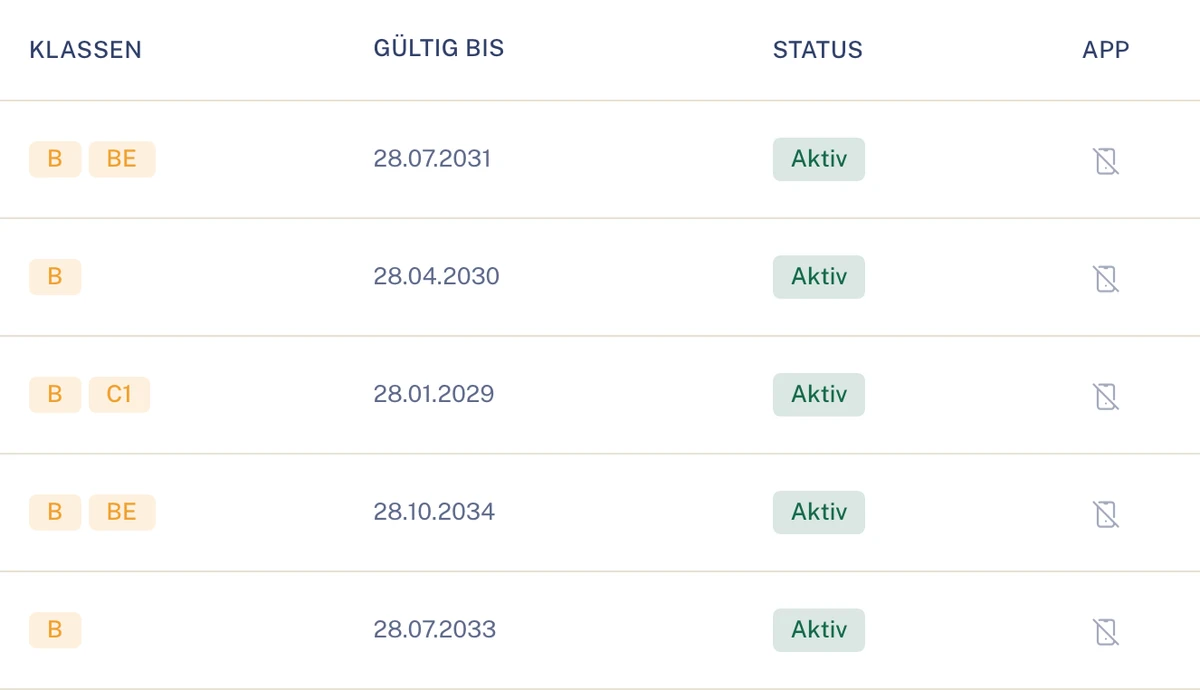
Driver list with driving licence classes. Sample data. Garage orders
Accepting, appointment, cost estimate and invoice in the Garage portal. Glass specialists work in the same portal.
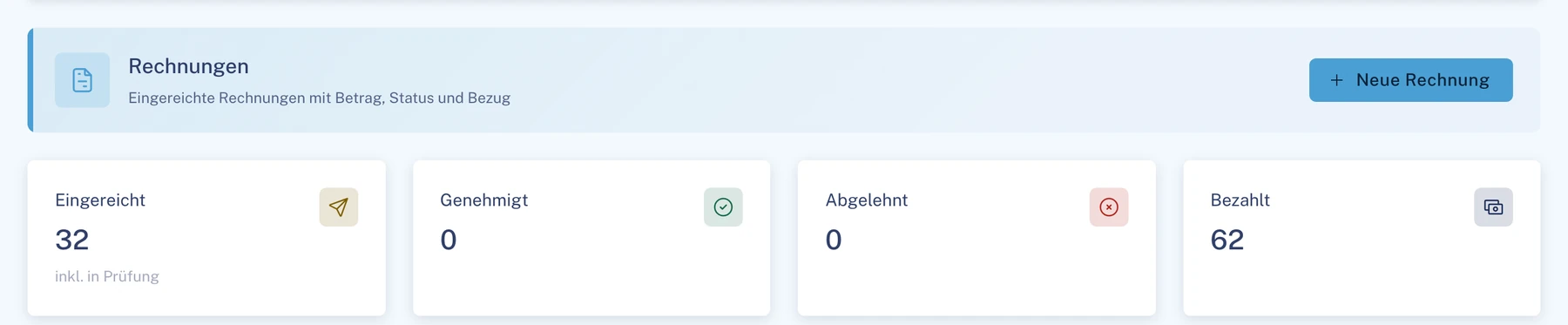
Invoices in the Garage portal. Sample data. Tasks
Tasks on vehicle, defect or claim, with checklist, comments and reminder. They can be assigned to people or to an inbox.
Tyres
Add-on moduleTyre sets, tread measurements and change deadlines of the construction vehicles. Too little tread automatically creates a tyre defect with a lock; drivers report the tread depth in the app.
Roles in construction
Who takes part in construction
- FleetPortalClassifies defects, confirms locks, commissions the garage and re-checks.To the solution Fleet
- Driverapp onlyReports defects and claims with a photo and submits inspection results.To the solution Driver
- GaragePortalAccepts the order, sets the appointment and reports the fix.To the solution Garage
Also involved
- AssessorPortalFor larger claims: expert reports straight into the file.To the solution Assessor
- InsurerPortalFor claims: approvals and settlement.To the solution Insurer
- Underwriting agent (MGA)PortalJoins for claims, on behalf and with delegated authority.To the solution Underwriting agent (MGA)
Documents what happened at the yard
- File
- Report, deadline, garage order and re-check of a defect are in one file.
- Permissions
- Roles and permissions govern who in the business may lock vehicles, commission and approve.
- Garage
- The garage sees its order, not your whole fleet.
- Storage location
- Data is stored in data centres in the EU; transmission is encrypted (TLS).
Questions in construction
Questions from construction companies
When is a vehicle locked?
At critical severity or “not drivable” the vehicle is locked automatically; the organisation sets this.
Can the driver lock a vehicle themselves?
If the driver reports “not drivable”, that locks the vehicle provisionally; the fleet confirms or lifts the lock, lifting with a reason.
Does it work on site with a tablet?
Yes, the Driver app also runs on the iPad, portrait and landscape.
How do we know to whom the vehicle was assigned?
Drivers are assigned to vehicles with from and to dates. The claim file shows vehicle and driver.
Does the garage let us know when the defect is fixed?
Yes, with “Report fix” in the Garage portal. The fleet then re-checks.
Does Clamio carry out the UVV inspection itself?
No. Clamio keeps the due date and reminds. The driver submits the result; the fleet confirms.
Do we need a separate module for defects?
Yes, defect is an add-on module. For asking the garage automatically the following also applies: Automation booked.
See Clamio for your construction fleet
We show you a defect from report to re-check, a lock with confirmation and the UVV due dates of your vehicles.