
Car rental portal · For replacement vehicles after a claim or breakdown
Supplying replacement vehicles to order
If a driver needs a replacement after a claim or breakdown, you receive the request in the portal and by email. You report the car as active and as returned, and invoice in the same portal.
- Accept or decline requests for replacement vehicles
- Report the car as active and as returned
- Extension directly in the order
- 01Request
- 02Confirmed
- 03Car active
- 04Extensionif needed
- 05Return
- 06Invoice
Starting point
What slows down rental today
Three places where things get stuck today, and what Clamio does there.
-
Requests by phone
The request comes by phone call. You settle acceptance or refusal on the phone.
With ClamioRequests reach you in the portal and by email. You accept or decline.
-
Extension by word of mouth
If the car is needed for longer, you learn of it late and update it by hand.
With ClamioExtension and rate change directly in the order. You maintain the daily rate; Clamio calculates duration and rental cost.
-
Invoice without feedback
Whether the invoice has arrived and been reviewed, you only learn on asking.
With ClamioYou submit the invoice in the same portal and see its status through to “Paid”.
01Request
One request, your section
Each partner works in their own portal and only sees the cases for which they have an order.
- 01Report
- 02Review
- 03Partner selectionThis is where you get on
- 04Approval
- 05Settlement
- 06Closure
claim or breakdown
Car rental requests from claims and breakdowns reach you in the portal and by email.
Accept or decline
The fleet chooses in the process how partners are asked. At the same time: as soon as one partner accepts, the request is settled for the others. If one declines, the request to the others stays open. One after another: if one declines, the next is asked immediately, otherwise once the waiting time has elapsed.
What you see
Your rental order. You maintain the daily rate; Clamio calculates duration and rental cost.
Own amounts
You see your own order amounts.
One file, everyone sees their own section.
 File · Car rental partner’s viewIllustrationYour section
- Your ordervisible: for a replacement vehicle, after a claim or breakdown
- Rental historyvisible: every step with time and trigger
- Discussionvisible: queries in the file instead of by phone
- Documentsvisible: you file the rental agreement in the file
- Amountspartly: your own order amounts, others only as far as shared
- Cases without an ordernot visible: do not appear for you
- Via order linknot visible: driver and cost data are not visible through it
Rental Requests · Car rental portalScreenshot
02Workflow
From request to return
Your order is attached to the file of the case. You accept, report the car as active and as returned, and invoice in the same portal.
The fleet commissions via ClamioYou supply the car

Station 01 · Request
The request arrives in the portal and by email
If a driver needs a replacement after a claim or breakdown, you receive the request in the portal and by email.
- You maintain the daily rate; Clamio calculates duration and rental cost.
- You only see cases in which you are commissioned.
- Clamio
- reports the request in the portal and by email
- You
- see your rental order
Rental request · ReceiptIllustrationHow the request reaches you
In the portalBy email
On the order
- Daily rate
- Duration
- Rental cost
Drawn without amounts.
Station 02 · Accept
Accept with one click, after a confirmation prompt
Before accepting, the portal asks once: “Are you sure you want to accept this order?” When declining you can give a reason.
- Asked at the same time: as soon as one partner accepts, the request is settled for the others. If one declines, the request to the others stays open.
- Asked one after another: if one declines, the next is asked immediately, otherwise once the waiting time has elapsed.
- The portal then reports “Request accepted” or “Request declined”.
- Clamio
- notifies the fleet’s claims handlers
- You
- accept or decline
Rental request · AcceptIllustrationConfirmation prompt before accepting
Afterwards
RequestConfirmedActiveReturnedInvoiced
After “Accept” the order is set to “Confirmed”. When declining you can give a reason.
Station 03 · Rental car handover and return
The car goes out and comes back
In the rental history you report the car as active and as returned. Before every change, the portal asks once for confirmation.
- With workflow you confirm rental car handover, return and extension directly in the portal.
- You file the rental agreement as a document in the file.
- Clamio
- keeps the rental history with every change
- You
- report the car as active and as returned
Rental history · Rental car handover and returnIllustrationUpdate Status Confirmed → ActiveAre you sure you want to change the status?
With workflow · who confirms
Car rental portal · You
Your status in the rental history: Active. You have reported the car as active.
Reconstructed with the portal’s wording.
Station 04 · Extend
Extension and rate change directly in the order
If the car is needed for longer, you extend the rental in the order and enter the new return date. You also change the rate there.
- You maintain the daily rate; Clamio calculates duration and rental cost.
- You settle queries in the file, under the “Discussion” tab.
- Clamio
- calculates duration and rental cost
- You
- extend the rental or change the rate
Order · RentalIllustration- Daily rate
- Duration
- Rental cost
New return date
Drawn without amounts.
Station 05 · Invoicing
Invoice with receipt, status through to paid
You submit invoices with line items and receipt digitally in the same portal. After invoicing you set the order to “Invoiced”.
- The payer reviews the invoice and approves it.
- You see the status of your invoice through to “Paid”. You only see your own amounts.
- Clamio
- presents the invoice to the payer
- You
- submit the invoice with receipt
Rental historyScreenshot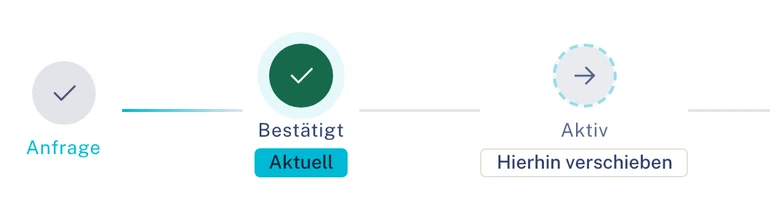
The rental history shows every step with time and trigger.
Who commissions
The fleet, via Clamio: from the claim or from the breakdown.
Who gets the request
The fleet chooses in the process: ask at the same time or ask one after another.
Who confirms
With workflow you confirm rental car handover, return and extension directly in the portal.
No amounts in messages
Messages to partners and drivers contain no claim amounts.
03Calendar
Pick-ups and returns in the calendar
The portal’s calendar shows your appointments. You show or hide orders, pick-ups and returns individually.
Calendar · Car rental portalScreenshot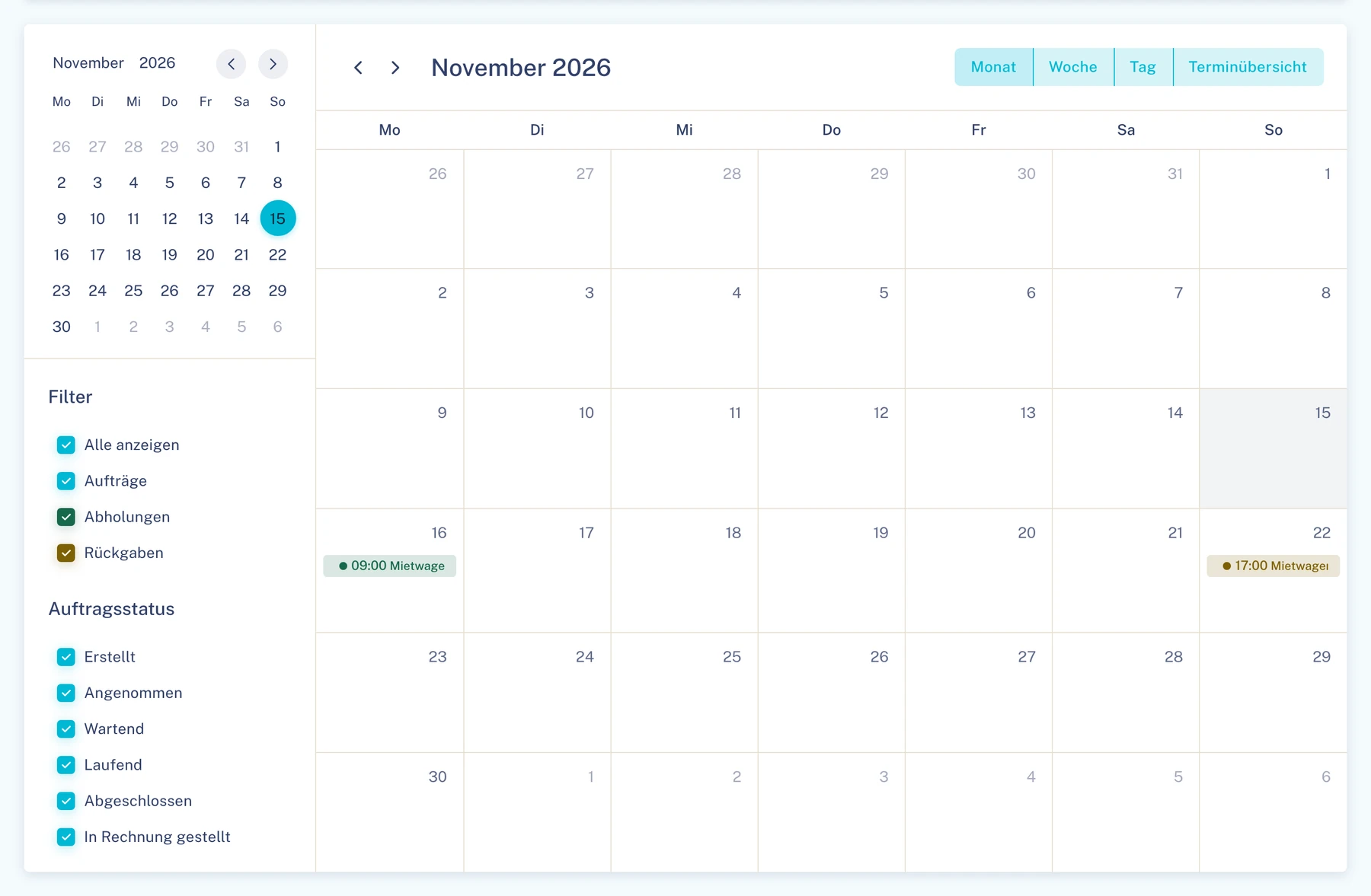
Calendar
One calendar with your appointments, as month, week, day or agenda.
Appointment
The appointment is on the order. You also change it there.
Rental fleet
You maintain your rental fleet yourself.
Arrangements
You settle queries in the file instead of by phone, under the “Discussion” tab.
One rental, two partiesIllustration- Fleetcommissions the rental car via Clamio
- Car rental · Youaccept the order
- Car rental · You with workflowconfirm the return in the portal
- Car rental · Yousubmit the invoice and set “Invoiced”
Example history, drawn without names and dates.
04Invoicing
Rental order and invoice in the same portal
You submit invoices with line items and receipt digitally. The payer reviews and approves them.
Daily rate
You maintain the daily rate; Clamio calculates duration and rental cost.
On the order
Extension and rate change directly in the order.
Invoice
You submit it with line items and receipt in the same portal and see its status through to “Paid”.
Own amounts
You see your own order amounts.
- Draft
- Submittedwith line items and receipt, in the same portal
- In reviewwith the payer
- Approvedor “Rejected”
- Paid
After invoicing you set the order to “Invoiced”.
Drawn without amounts.
05Collaboration
You supply the car, everyone works in one file
You work in the same file as fleet and insurer and only see what concerns your order.
FleetCommissions via Clamio
The fleet organises the replacement
If a driver needs a replacement after a claim or breakdown, the fleet commissions the rental car via Clamio. When an order is accepted, its claims handlers are notified.
Solution for fleets
Underwriting agent (MGA)Commissions on behalf
You see who has acted
The MGA’s settlement decision carries the label “on behalf of”.
Solution for underwriting agents


Other service providersOrders when a claim occurs
Each partner in their own portal
Garages, assessors, towing services and law firms work in the same file, each in their own portal.
Solution for service providersAlso in the Car rental portal
- Rental Requests
- Rental history
- Calendar with appointments
- Discussion
- Documents
- Invoices
- Rental fleet
Without your own accountAs a fleet’s service provider you can also take part without your own account via a protected order link.
Everyone sees only their own section
- Own cases and orders
- Each organisation sees its own cases and those for which it has an order or delegated authority, or which it insures.
- Own amounts only
- Partners only see amounts of their own orders and invoices.
- Data in the EU, encrypted in transit
- Data stored in data centres in the EU; transmission is encrypted (TLS).
Frequently asked questions
What car rental partners want to know in advance
What do I receive requests for?
For replacement vehicles after a claim or breakdown. The request arrives in the portal and by email.
What happens after accepting?
The order is set to “Confirmed”. You then report the car as active and as returned.
Who calculates the rental cost?
You maintain the daily rate; Clamio calculates duration and rental cost. Extension and rate change directly in the order.
Who confirms rental car handover and return?
With workflow you confirm rental car handover, return and extension directly in the portal.
Can I maintain my rental fleet in the portal?
Yes. You maintain your own rental fleet in the portal.
Do I have to give a reason if I decline?
No. When declining you can give a reason; it is not mandatory.
How do I invoice?
You submit the invoice in the same portal and see its status through to “Paid”. After invoicing you set the order to “Invoiced”.
Demo
Get to know the Car rental portal
In a demo we show you how car rental orders run in the portal from request to invoicing.